
Recording Stripe Deposits
1. Navigate to https://qbo.intuit.com/app/banking?jobId=accounting
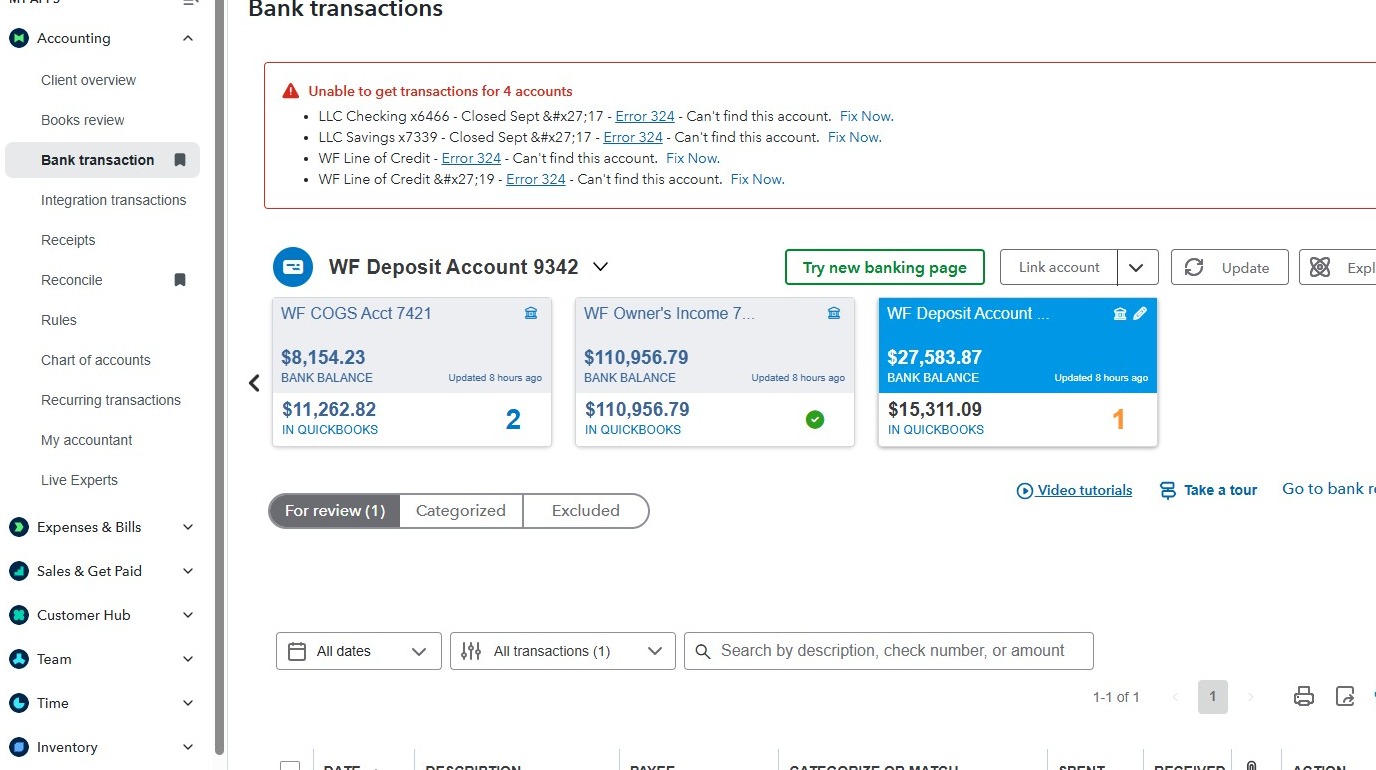
2. Click “Bank transactions”
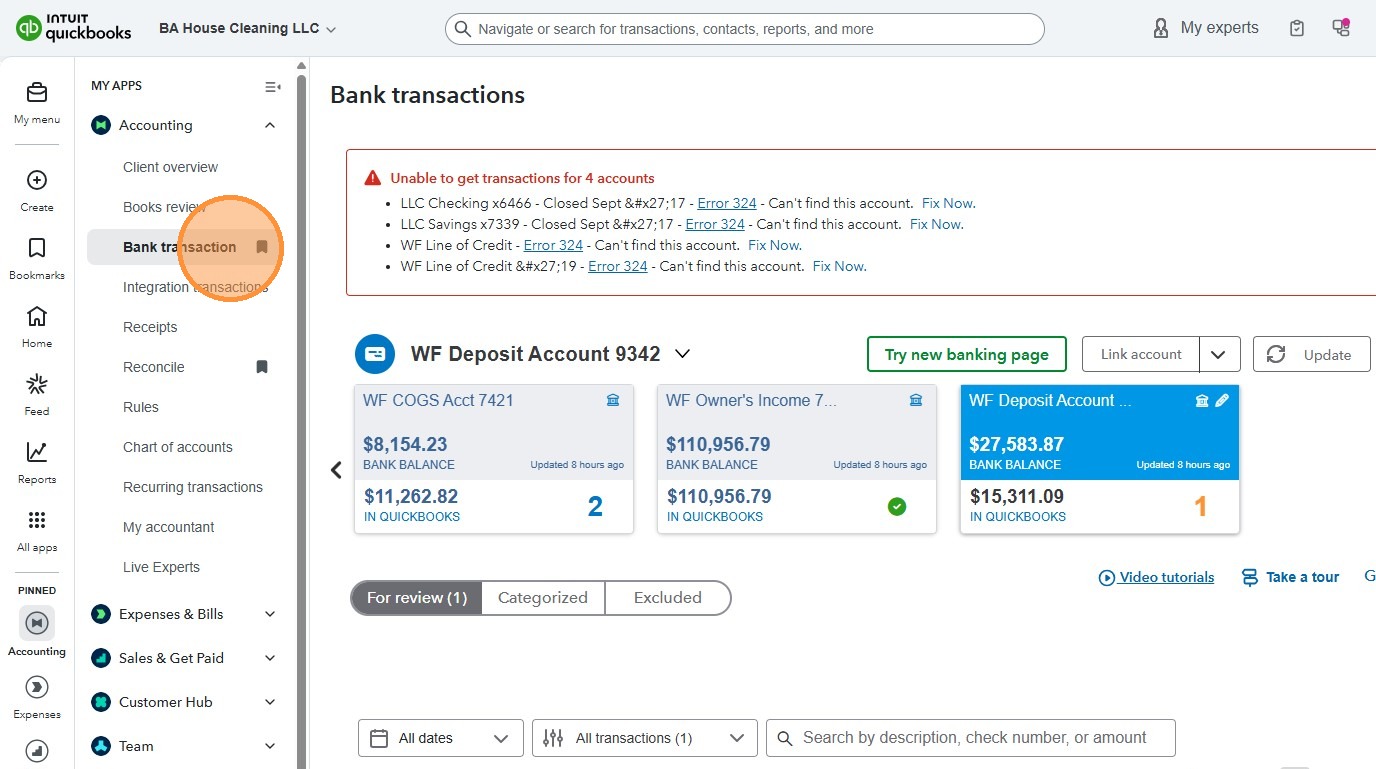
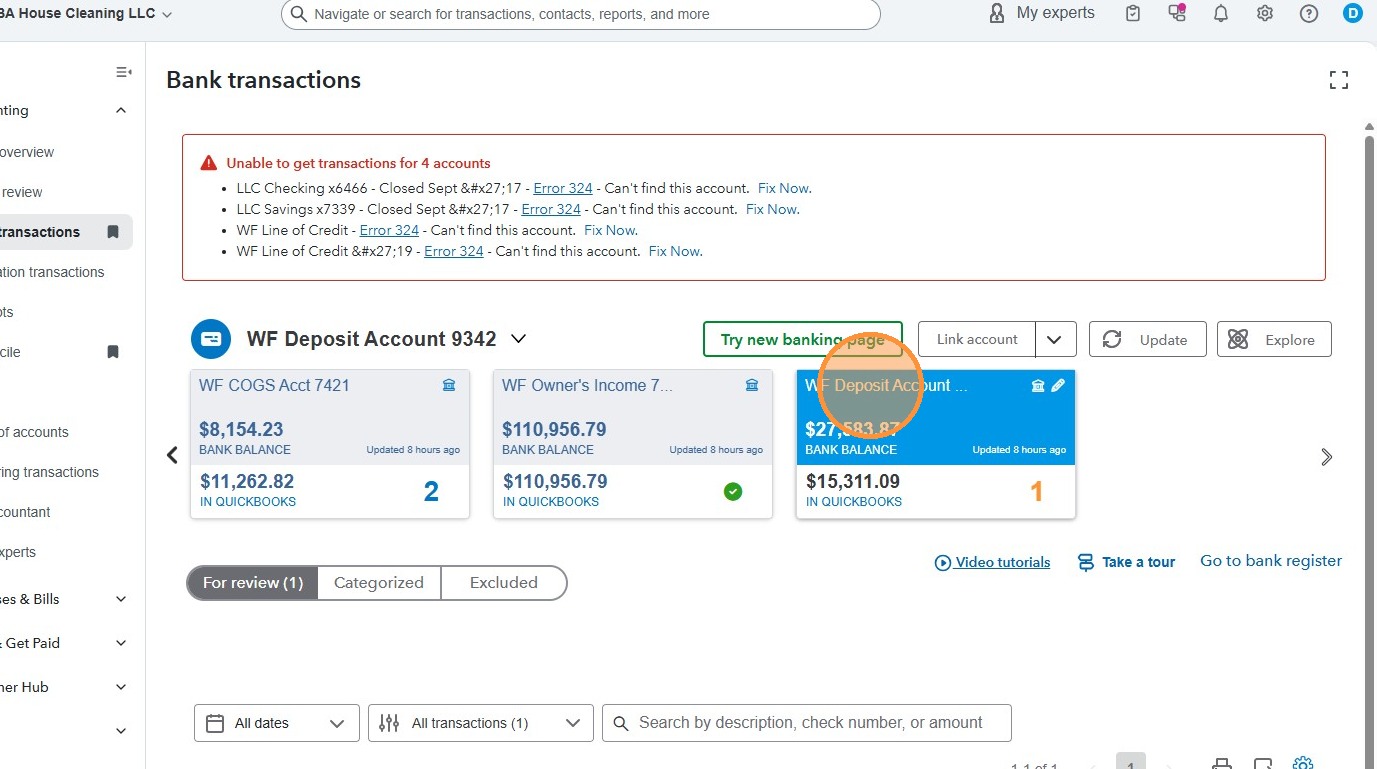
3. Click “WF Deposit Account …”
4. Select the outstanding transaction, to see what is the amount that needs to be recorded
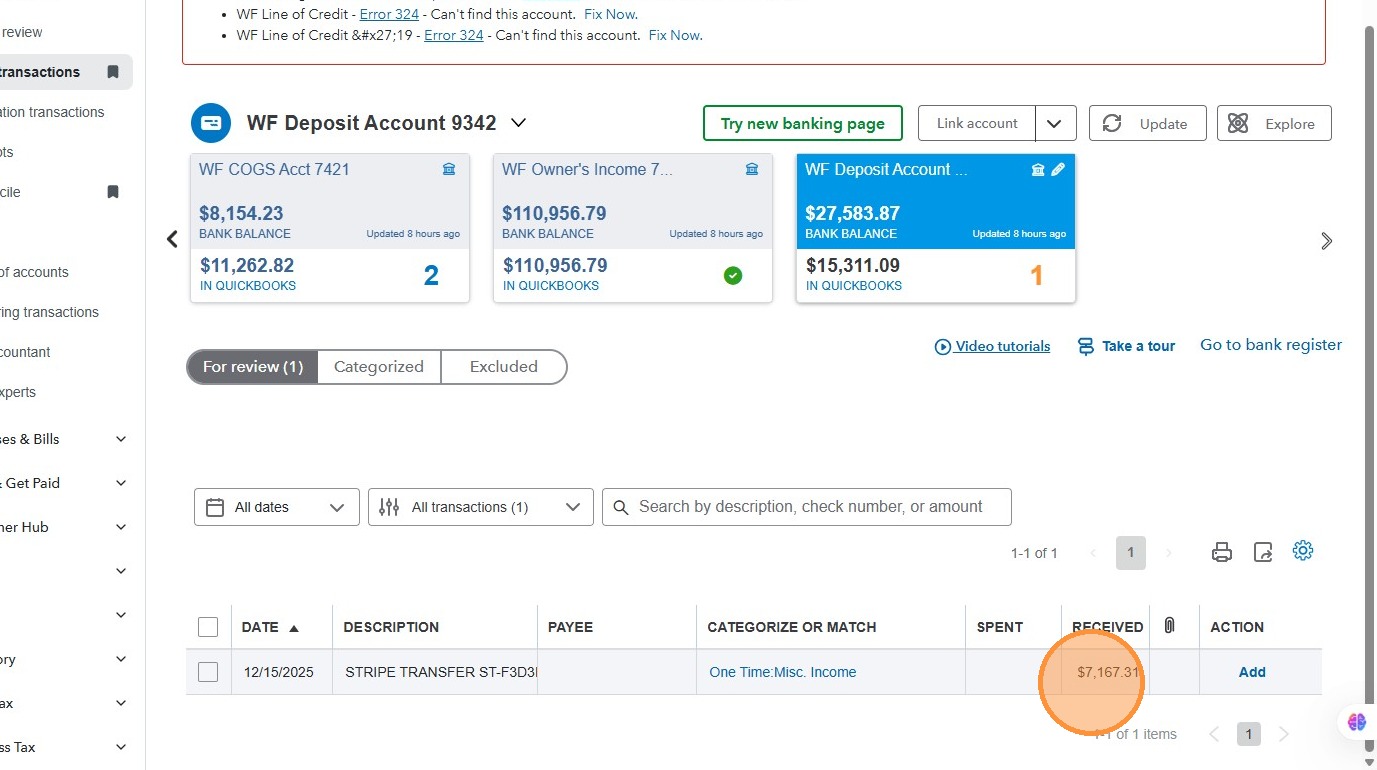
5. Click this icon “Create”
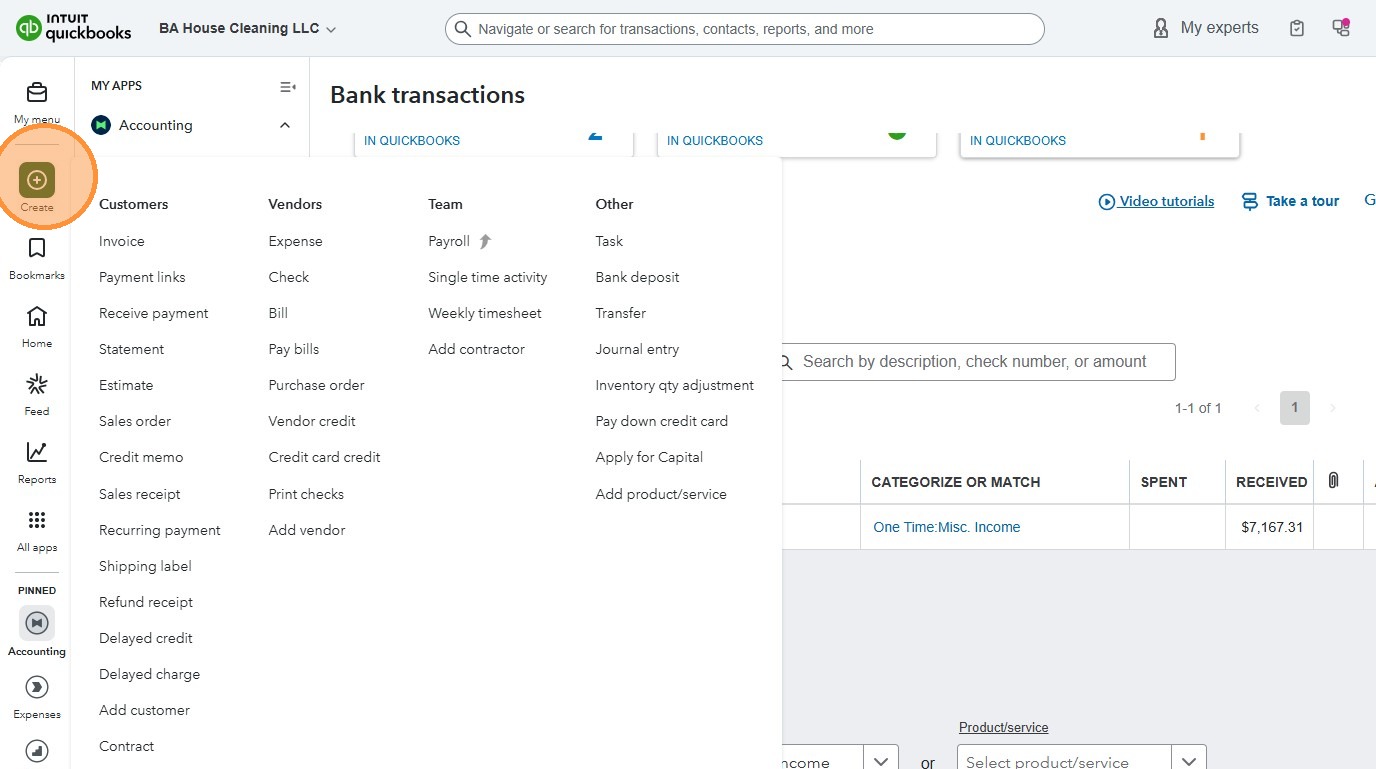
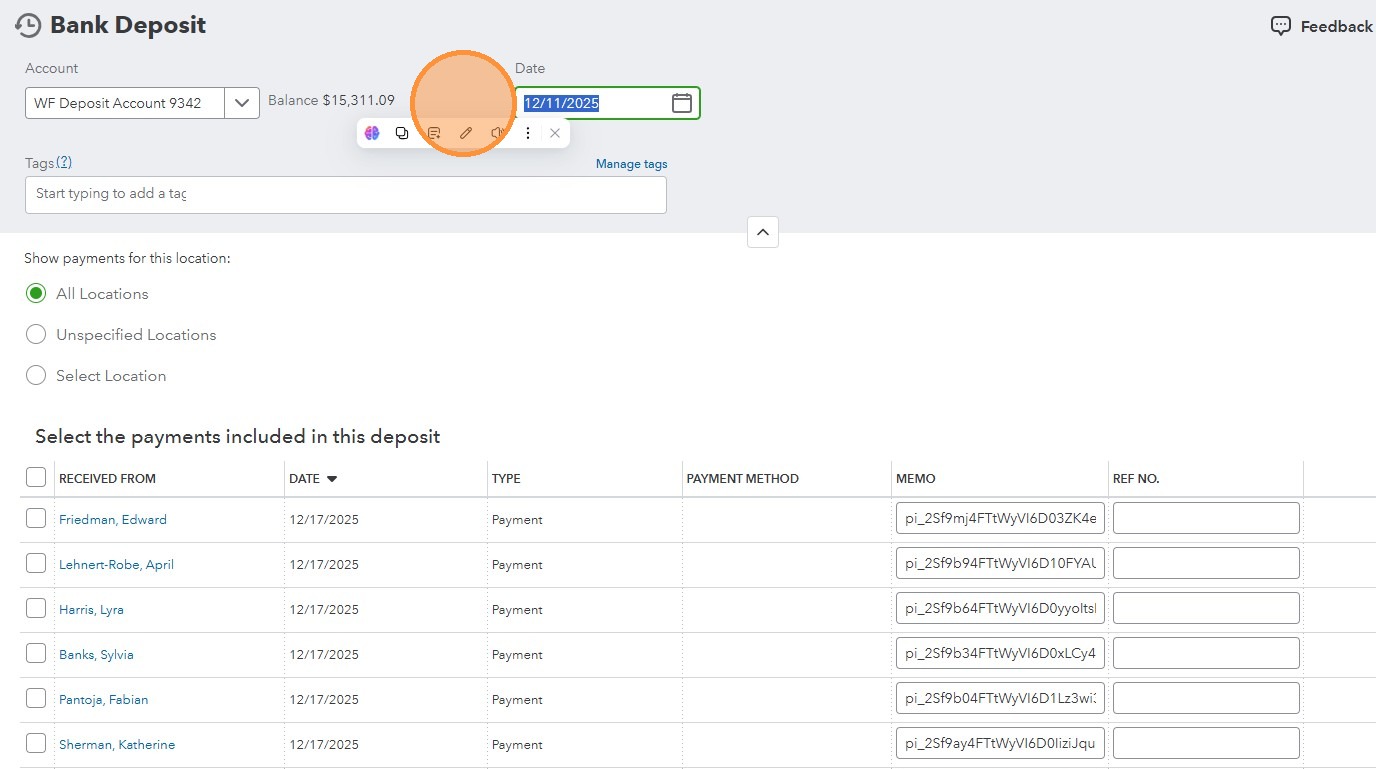
6. Click “Bank deposit”
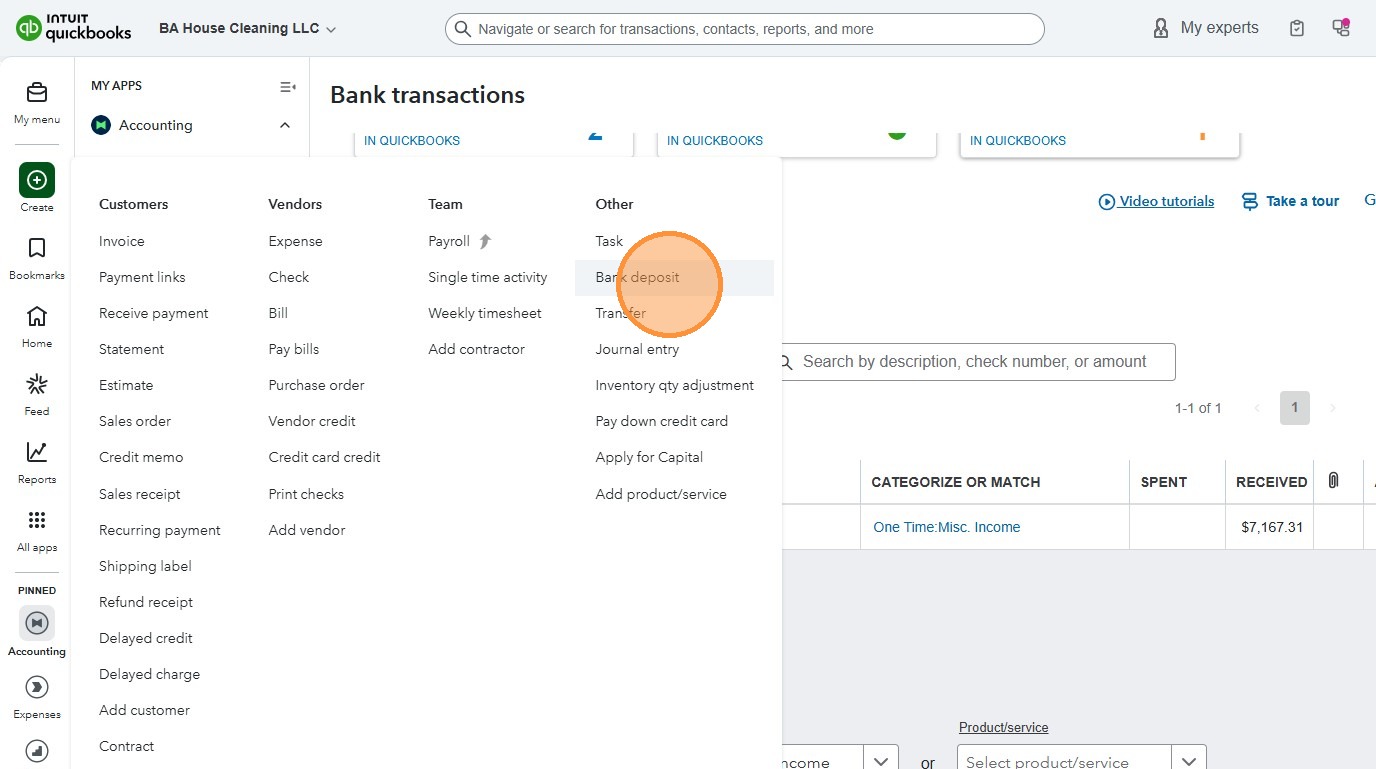
7. Click the “Account” field.
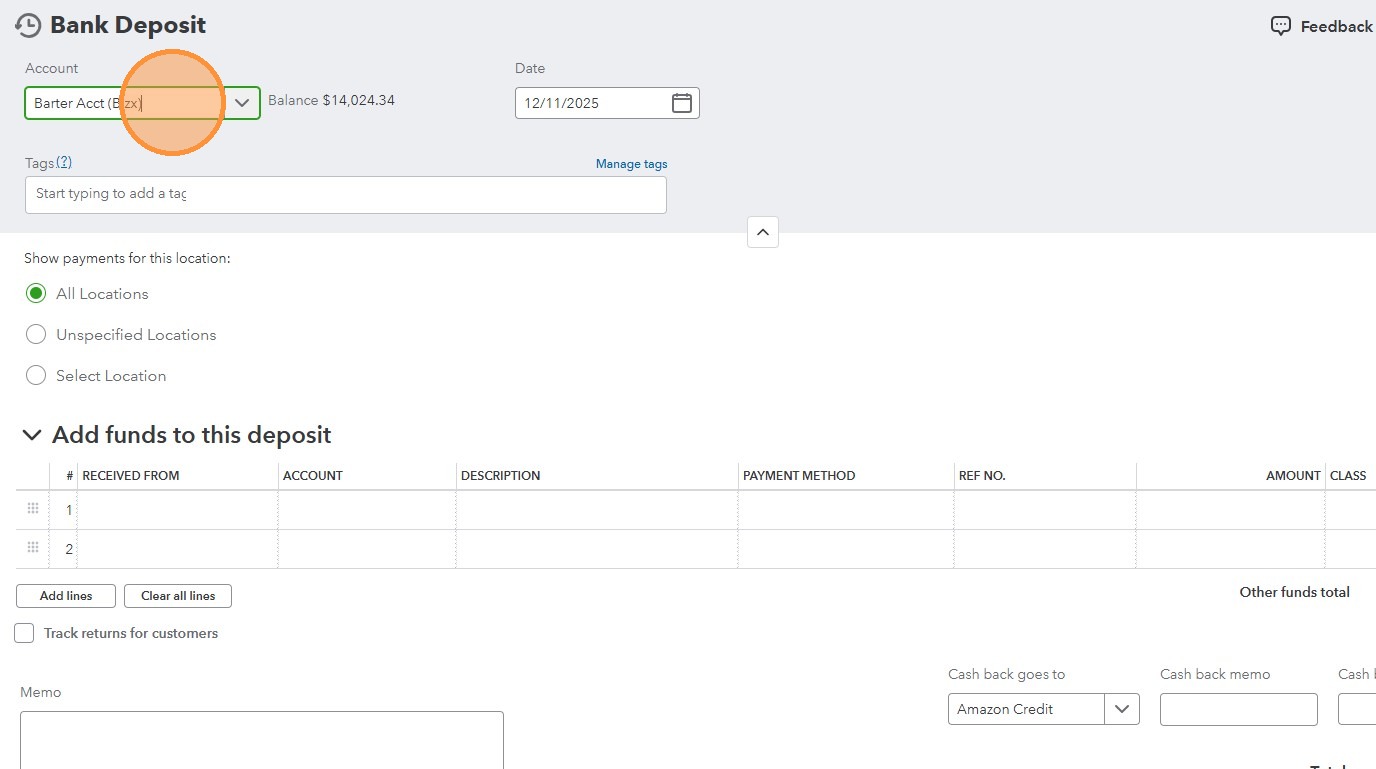
8. Select the “WF Deposit account 9342”
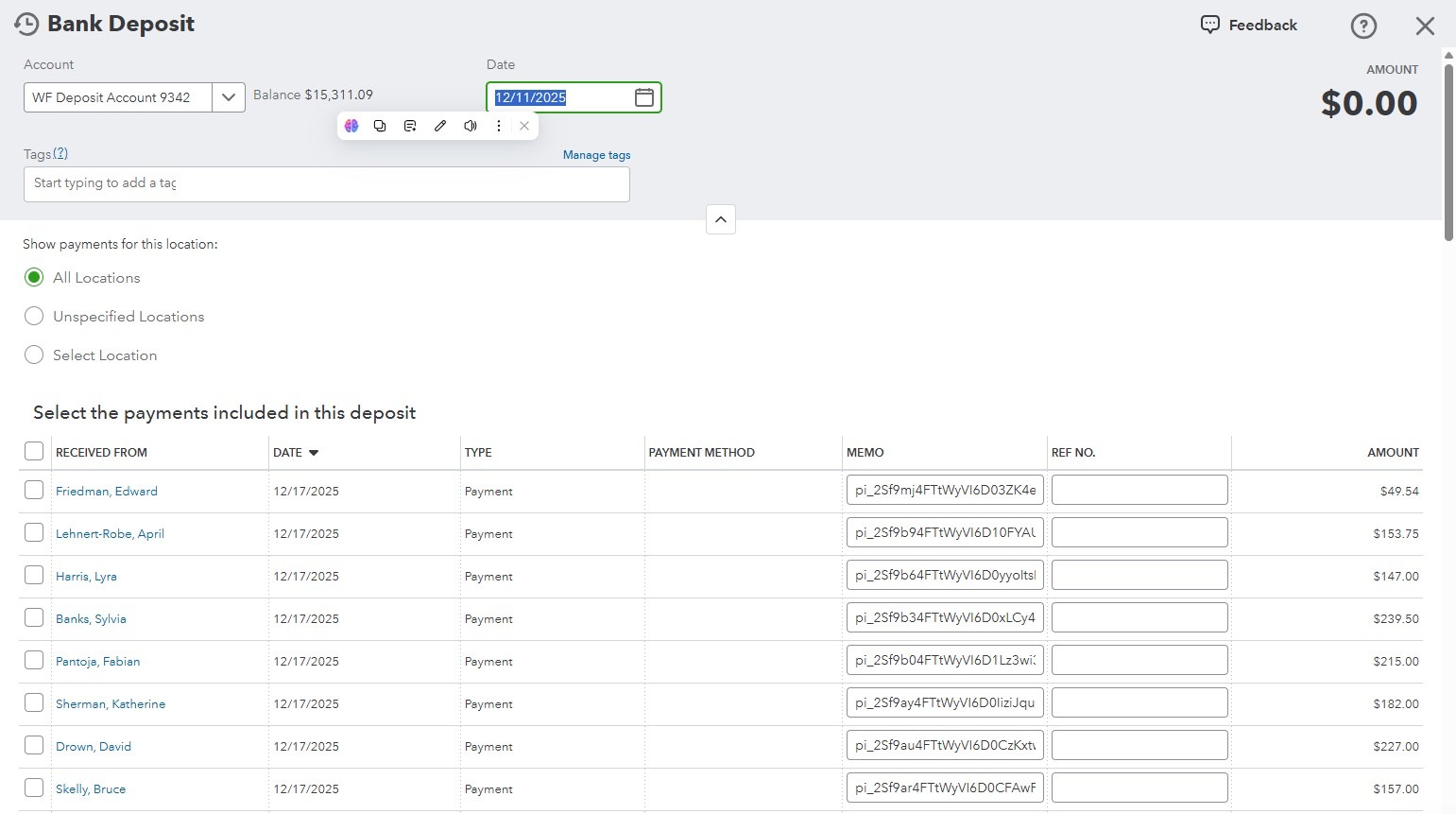
9. Click the “Date” field and type the date when the money hits our bank account
10. Go to Stripe and Click “Transactions”
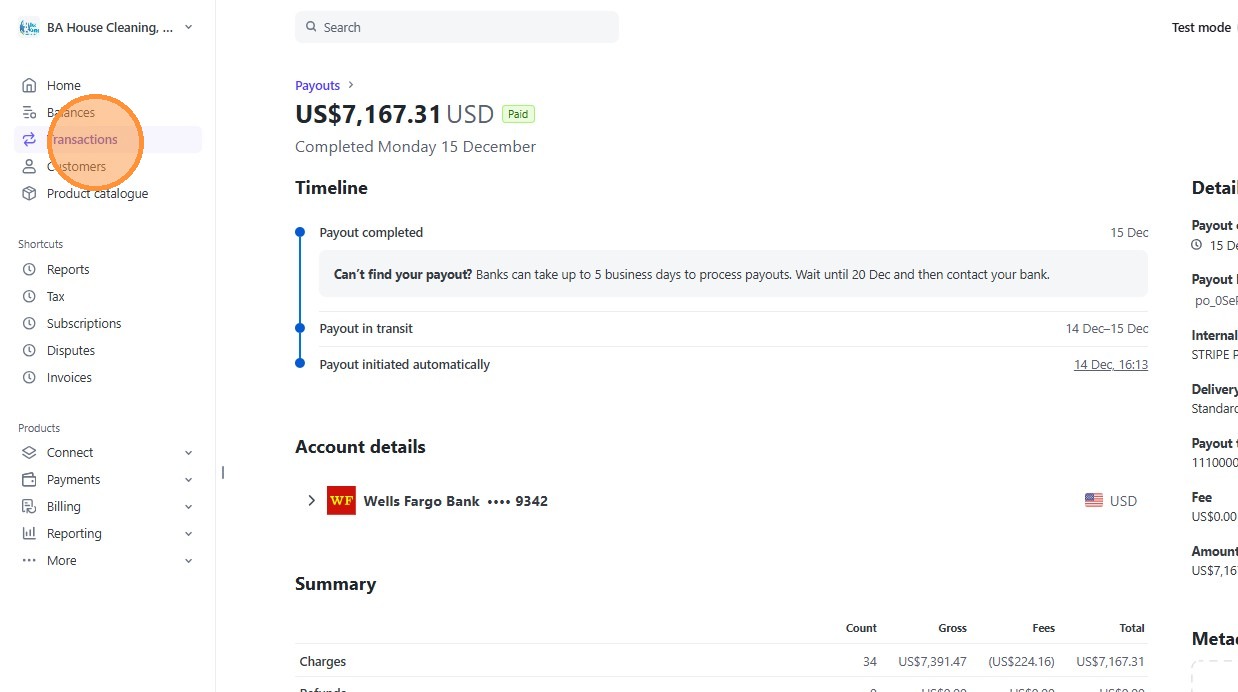
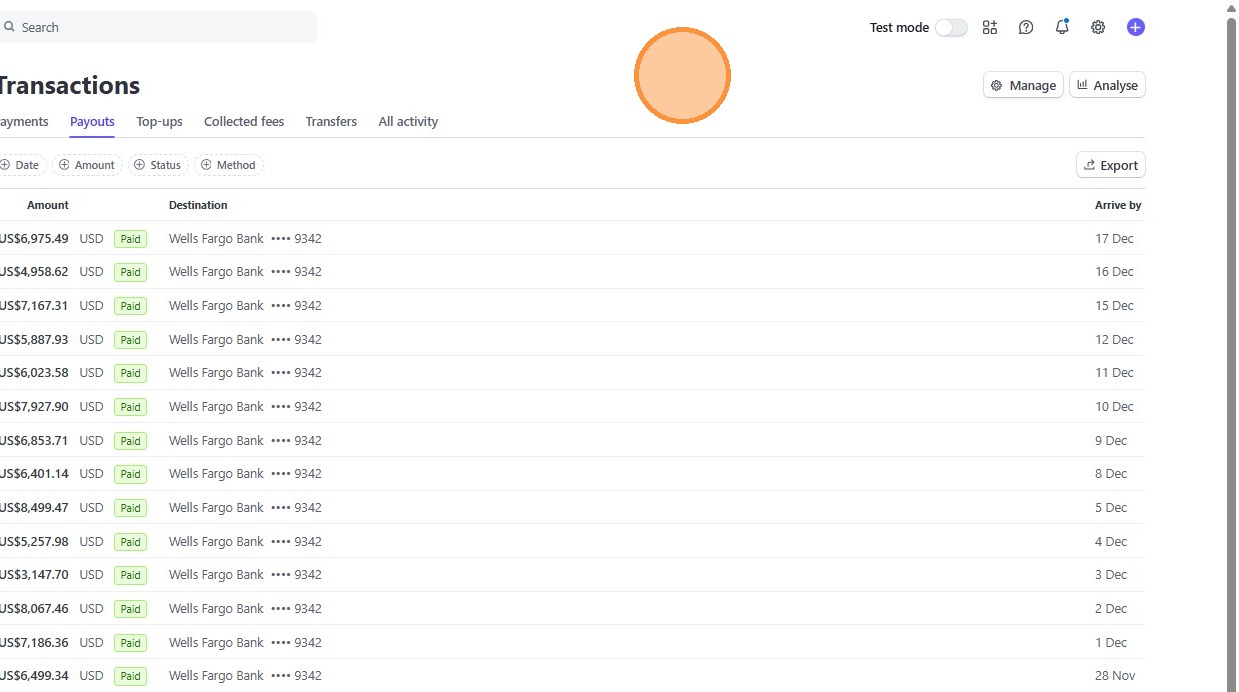
11. Click “Payouts” then select the amount of the deposit, in this example it is $7,167.31
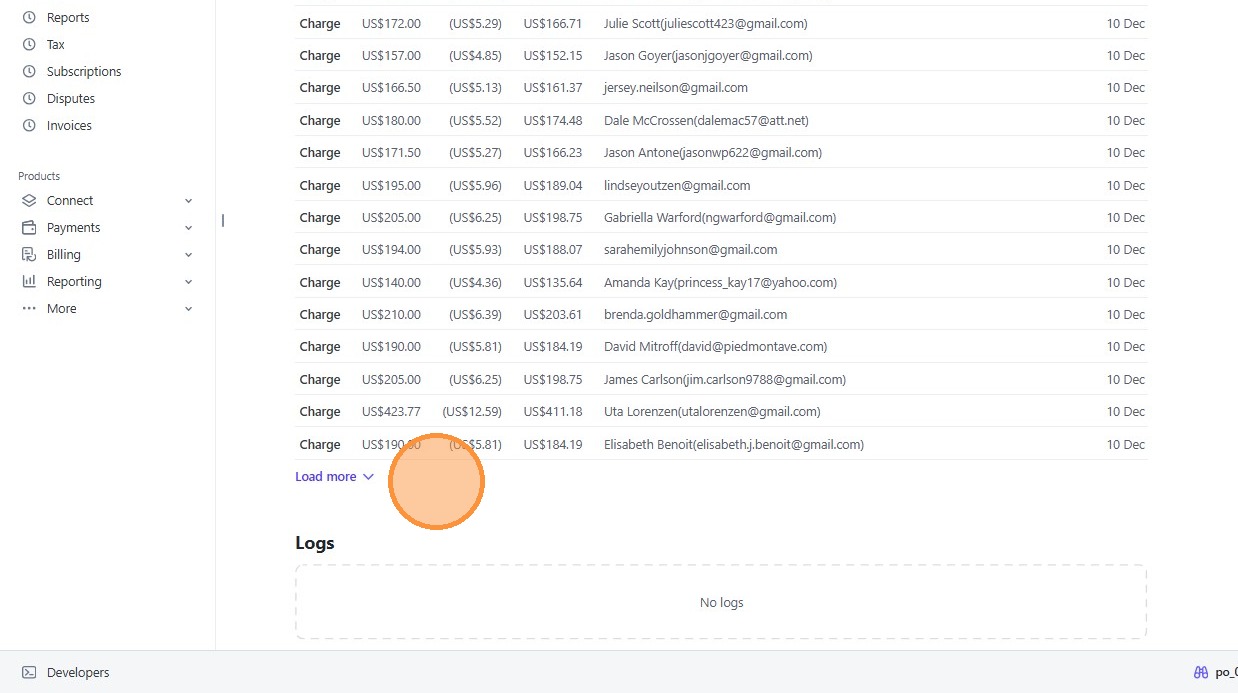
12. Click “Load more” until you reached the last part of the transaction
13. Now go back to Quickbooks and start recording the deposits
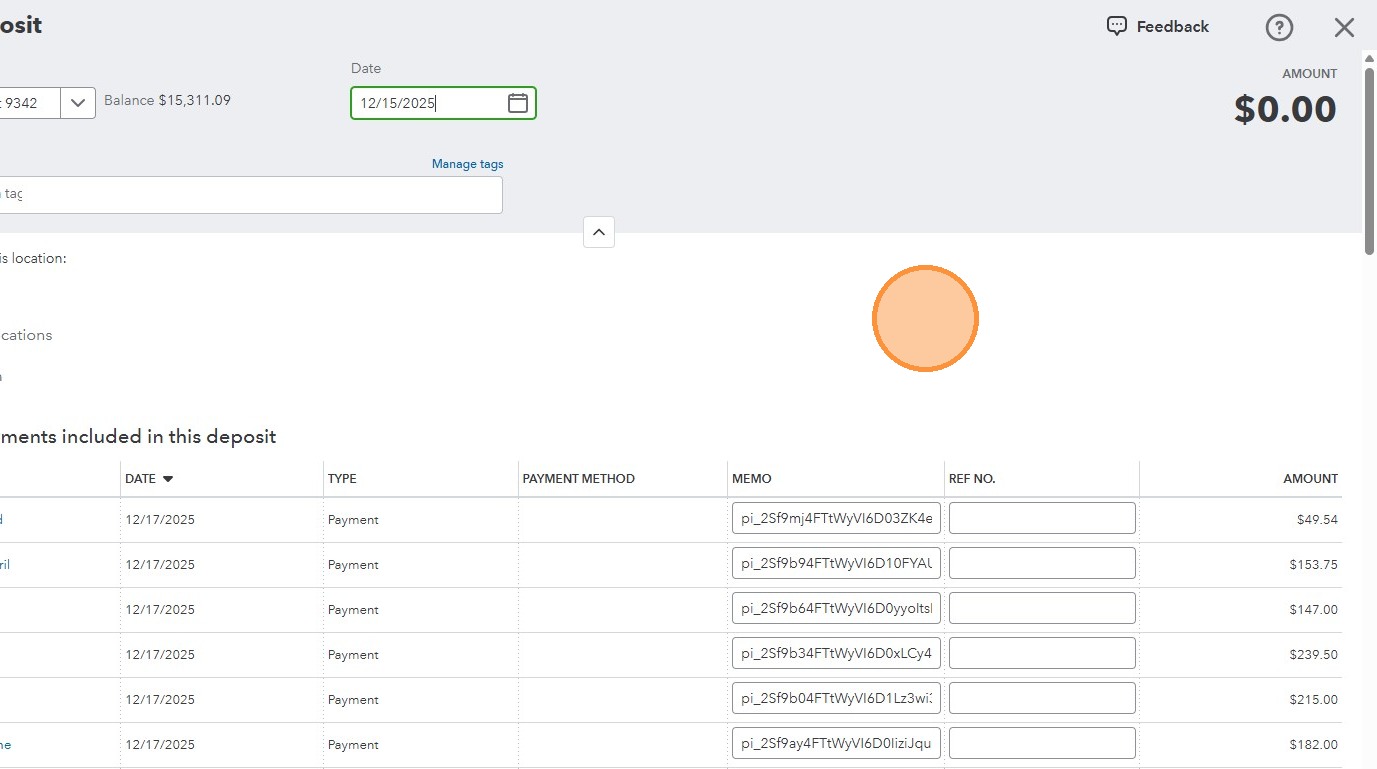
14. Scroll to the page where you can find the related deposits on that given date, in this example we need to go to December 10 deposits
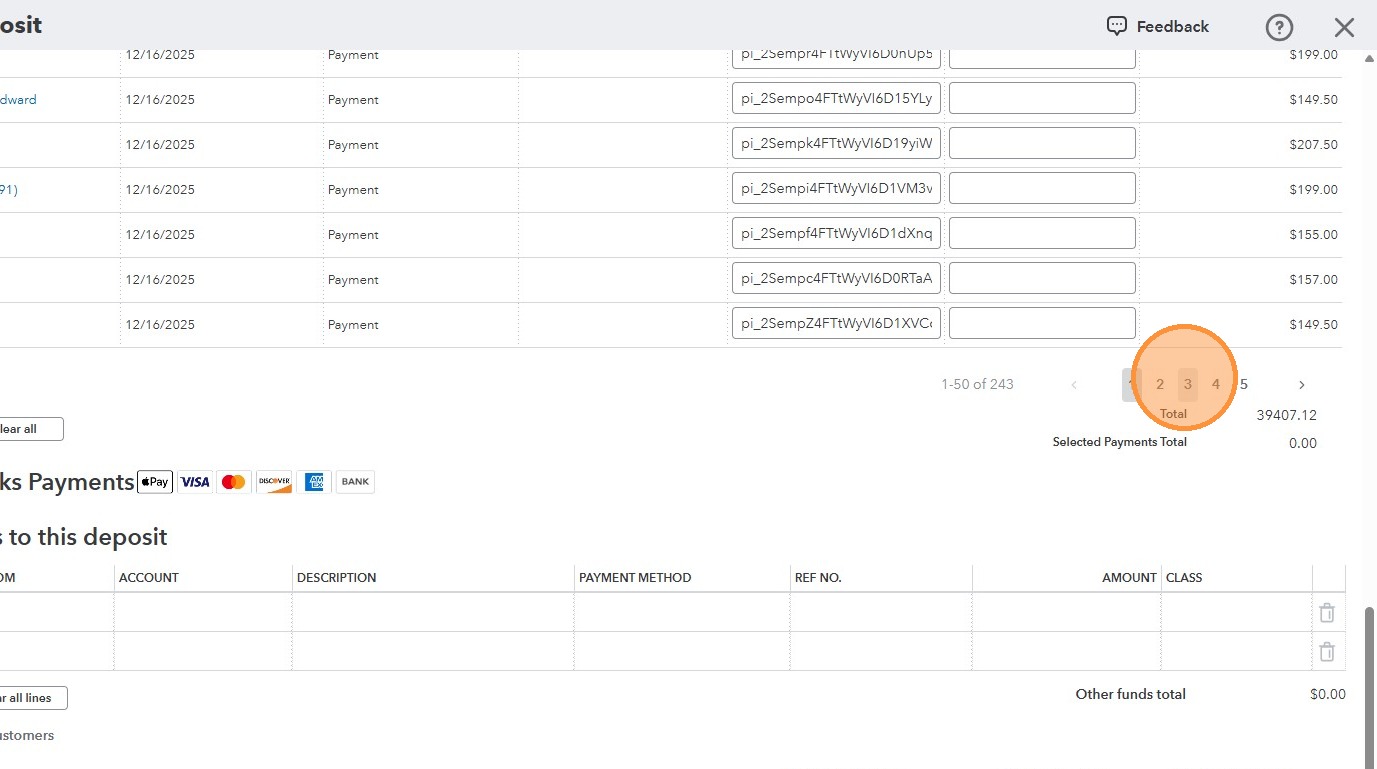
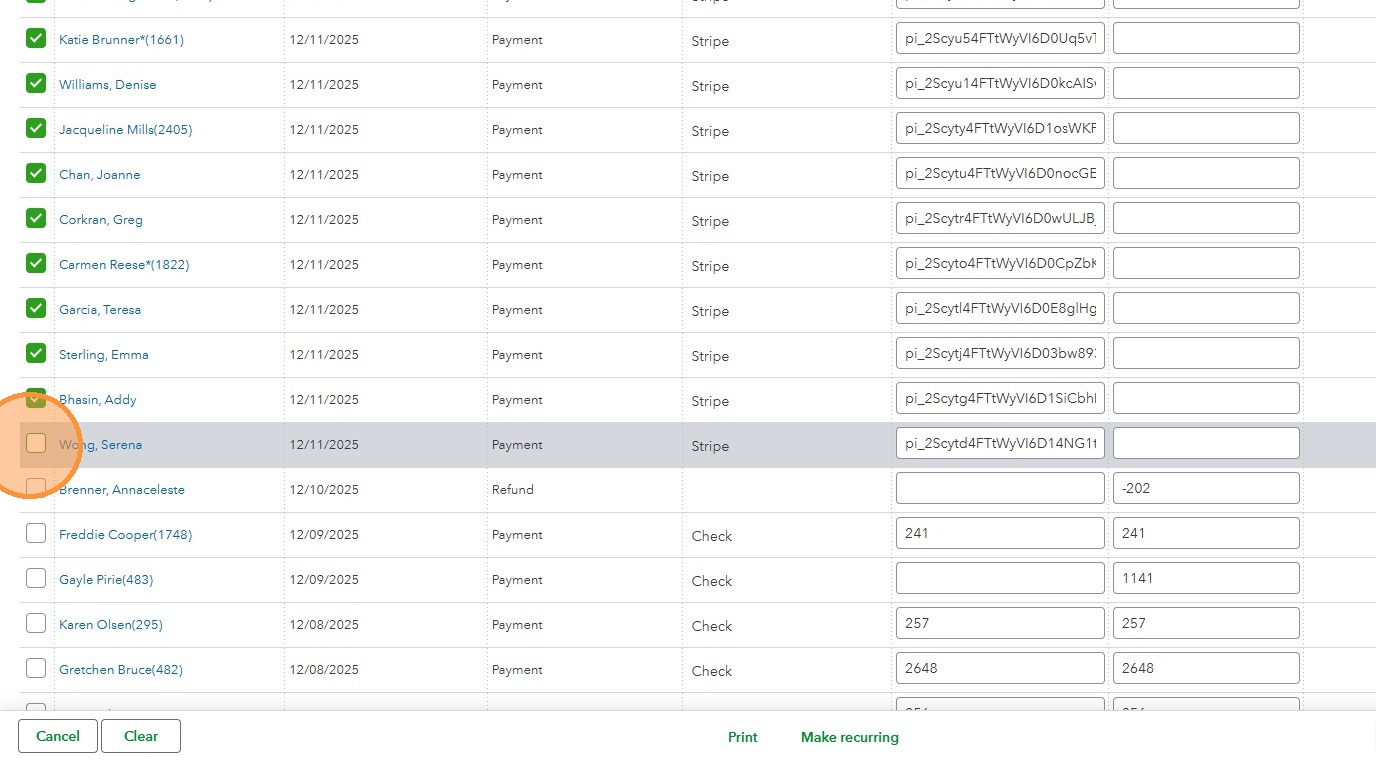
15. Once you have found the exact deposits, start checking the box to record each transactions
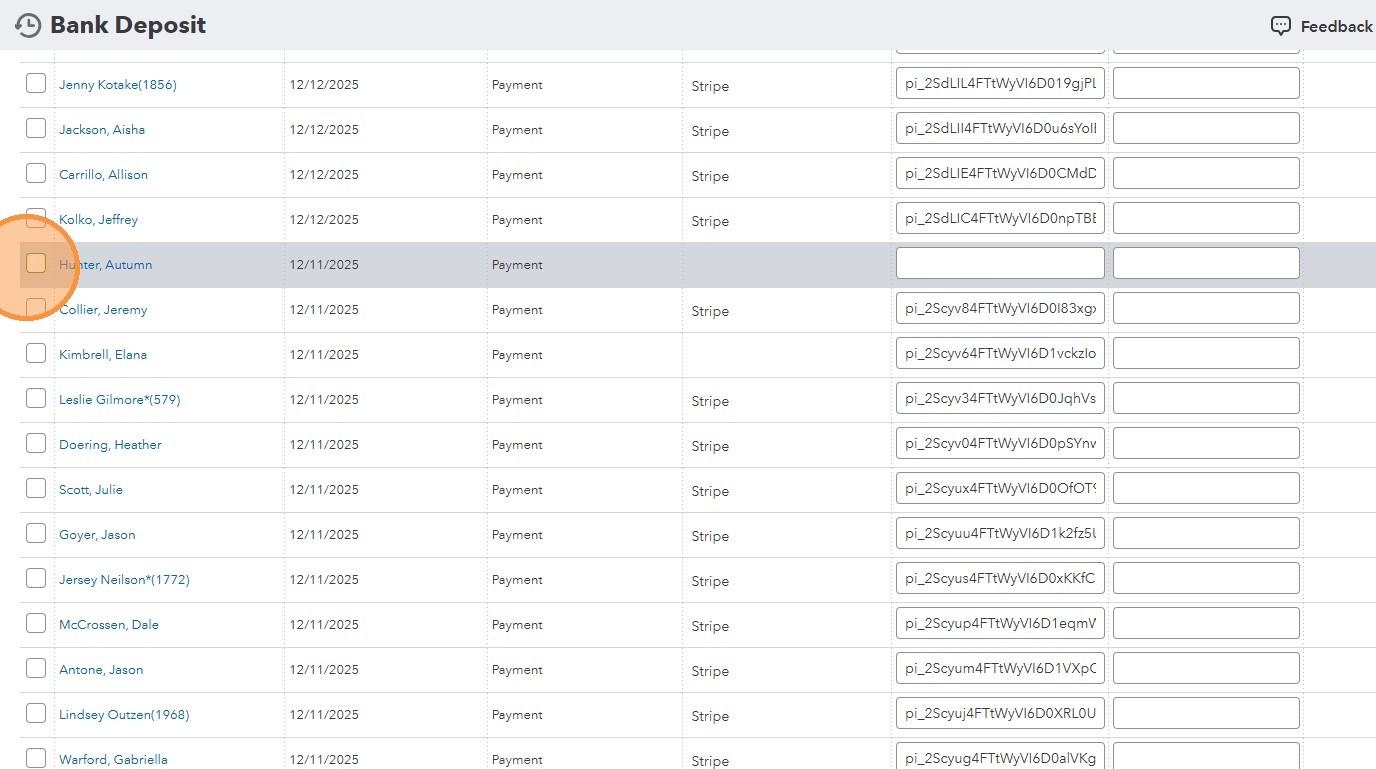
16. Click here.
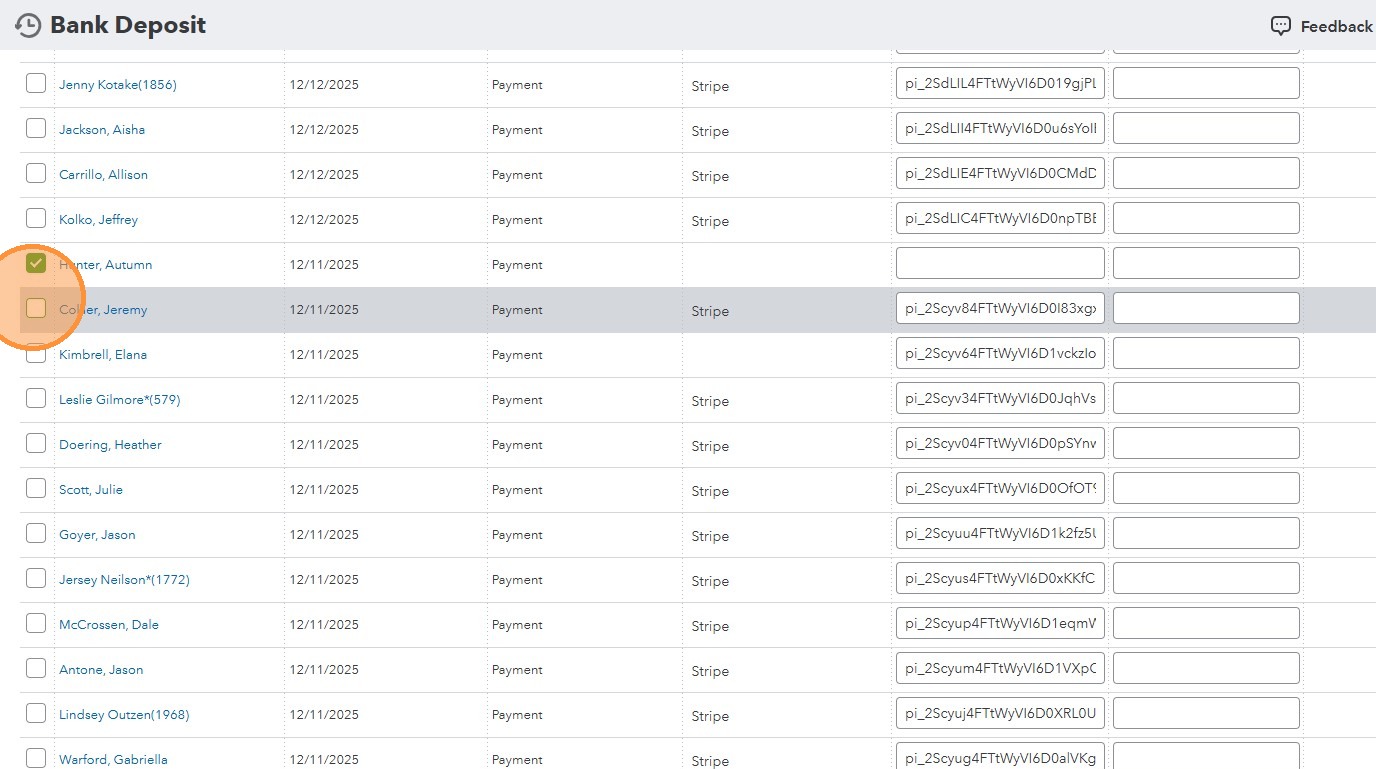
17. Click this checkbox.
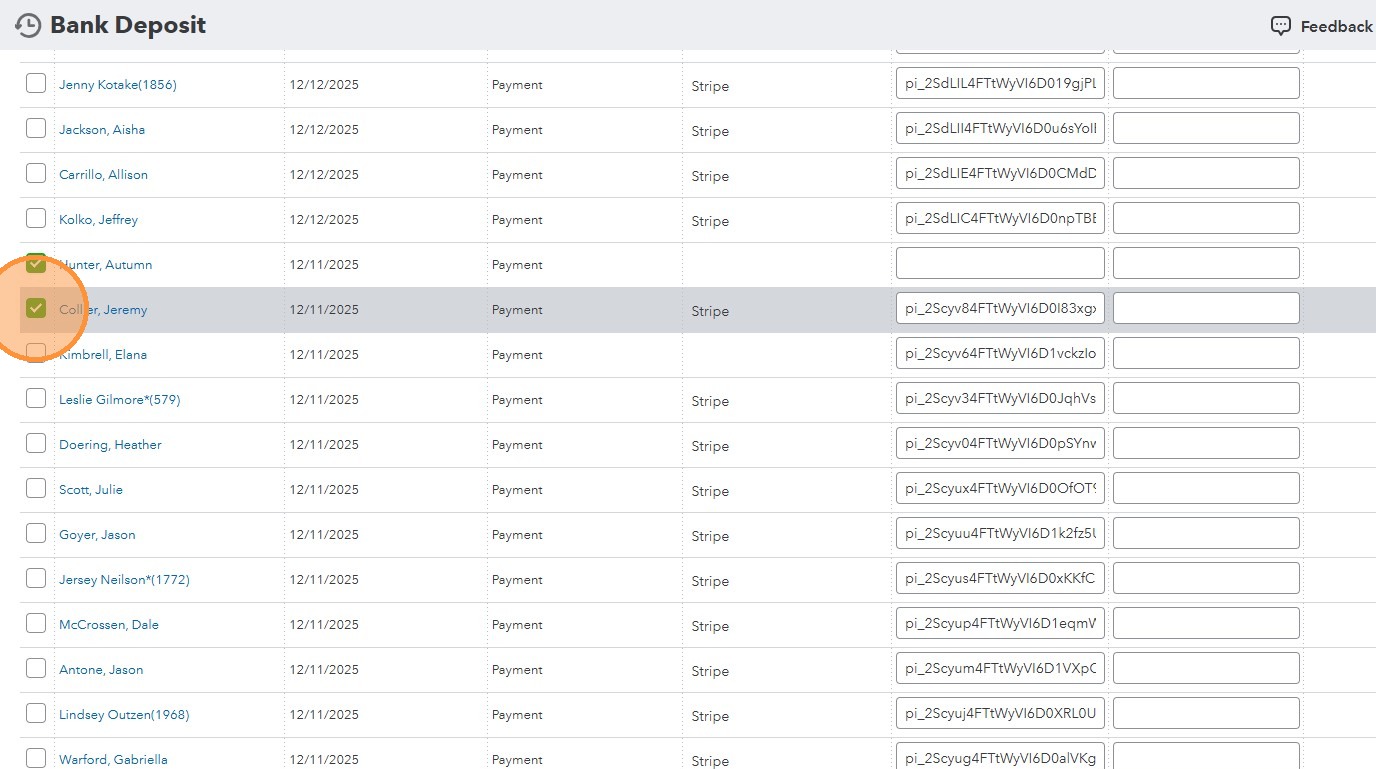
18. Click all related deposits until you have match the amount in Quickbooks and what is recorded in Stripe
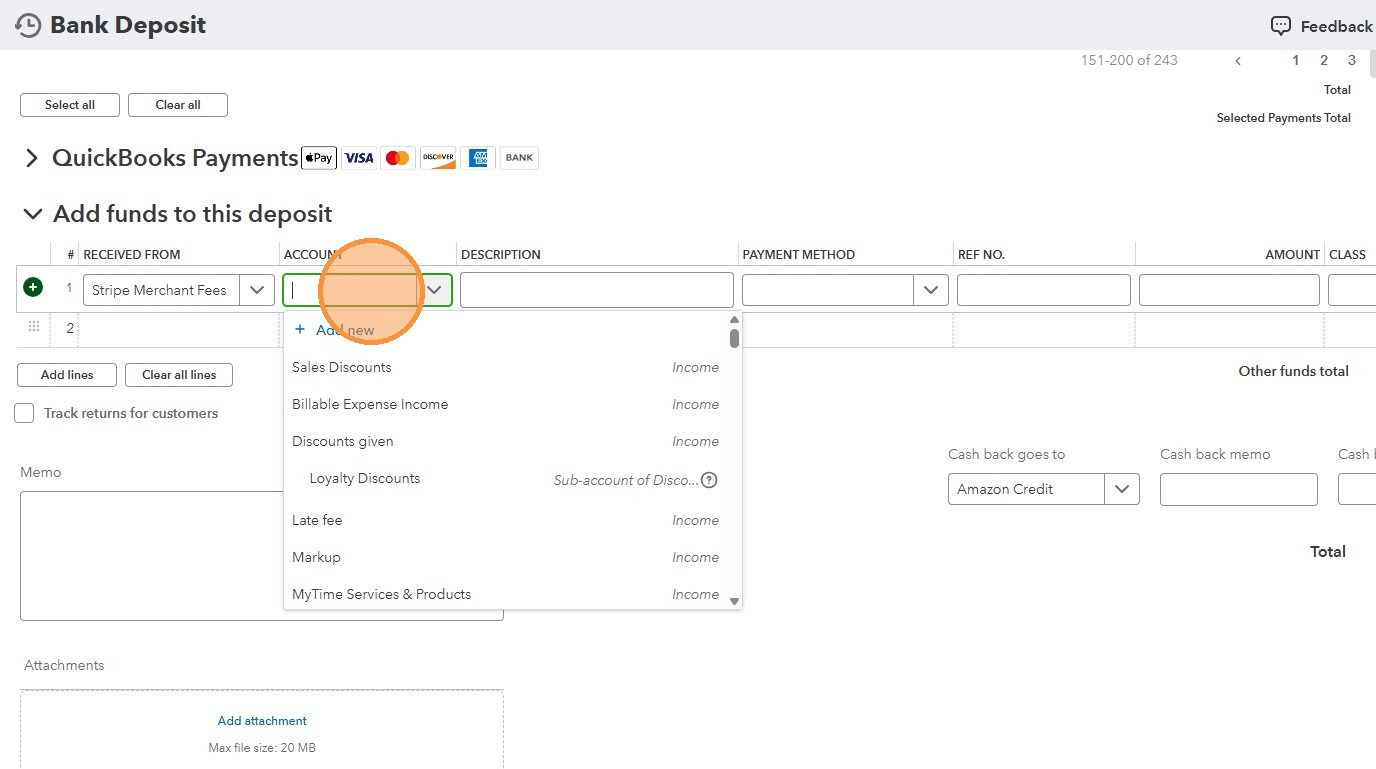
19. There will be a minor difference due to Stripe Fees, so you need to record it by clicking “Add Funds to this Deposit”
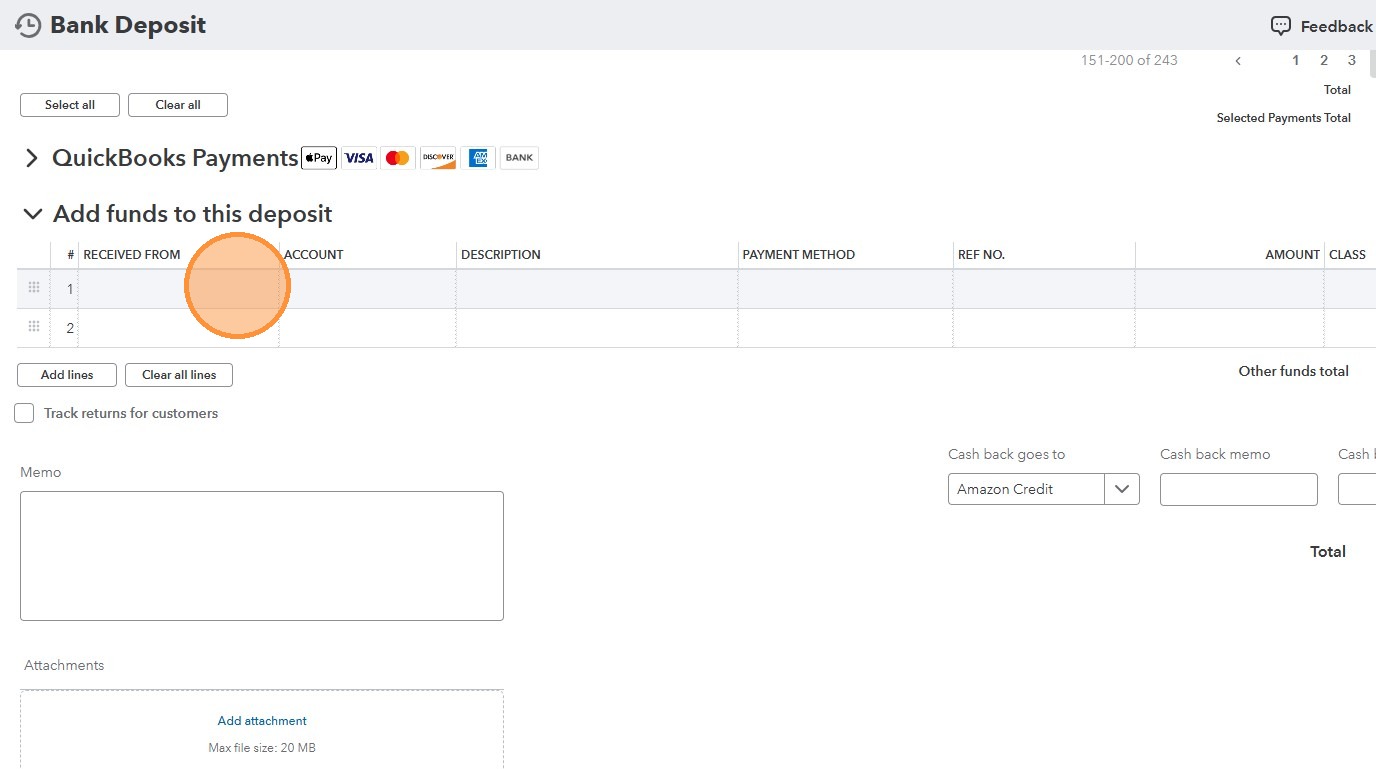
20. Click this text field and type “Stripe Merchant”
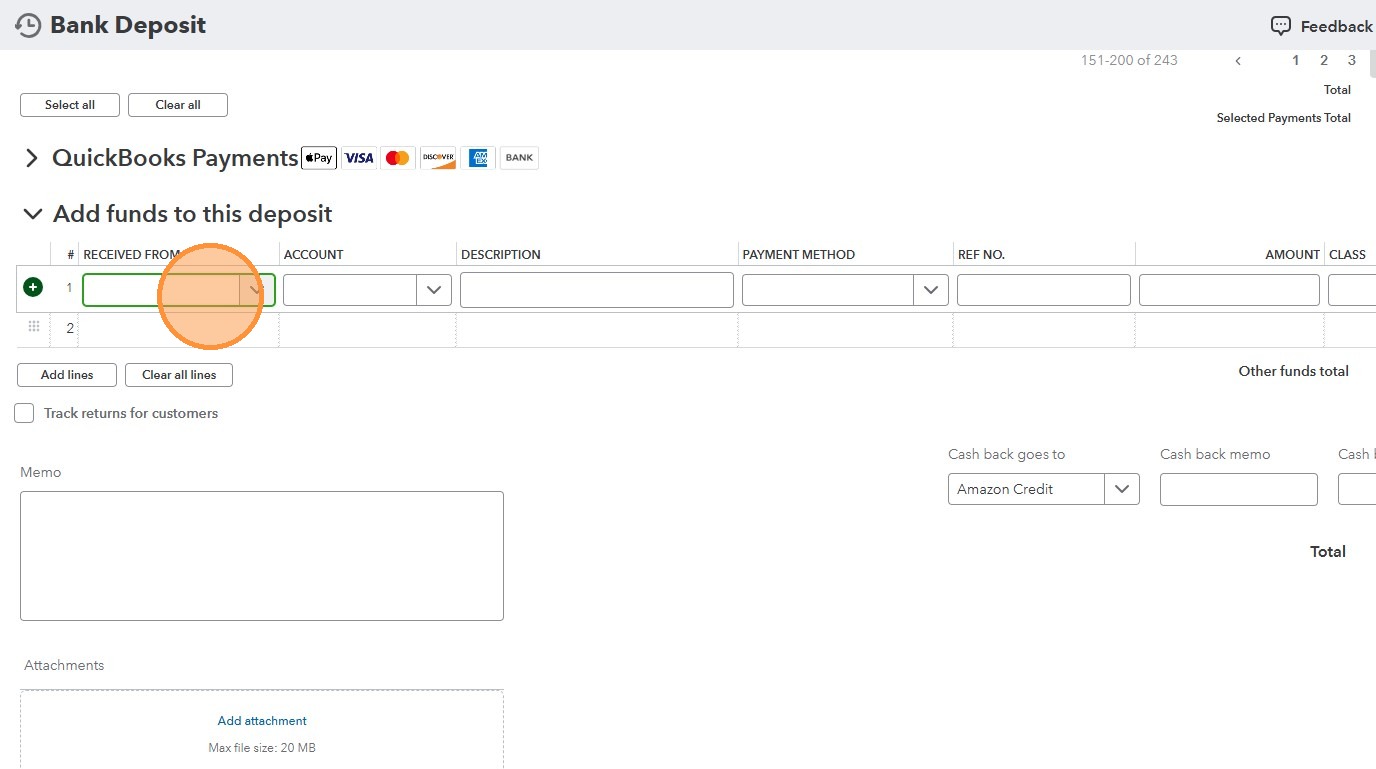
21. Click this “account” text field and select “Merchant Fees”
22. In the “Amount” field, what I usually do is check the stripe fees recorded on stripe and entered it as negative amount here in this field
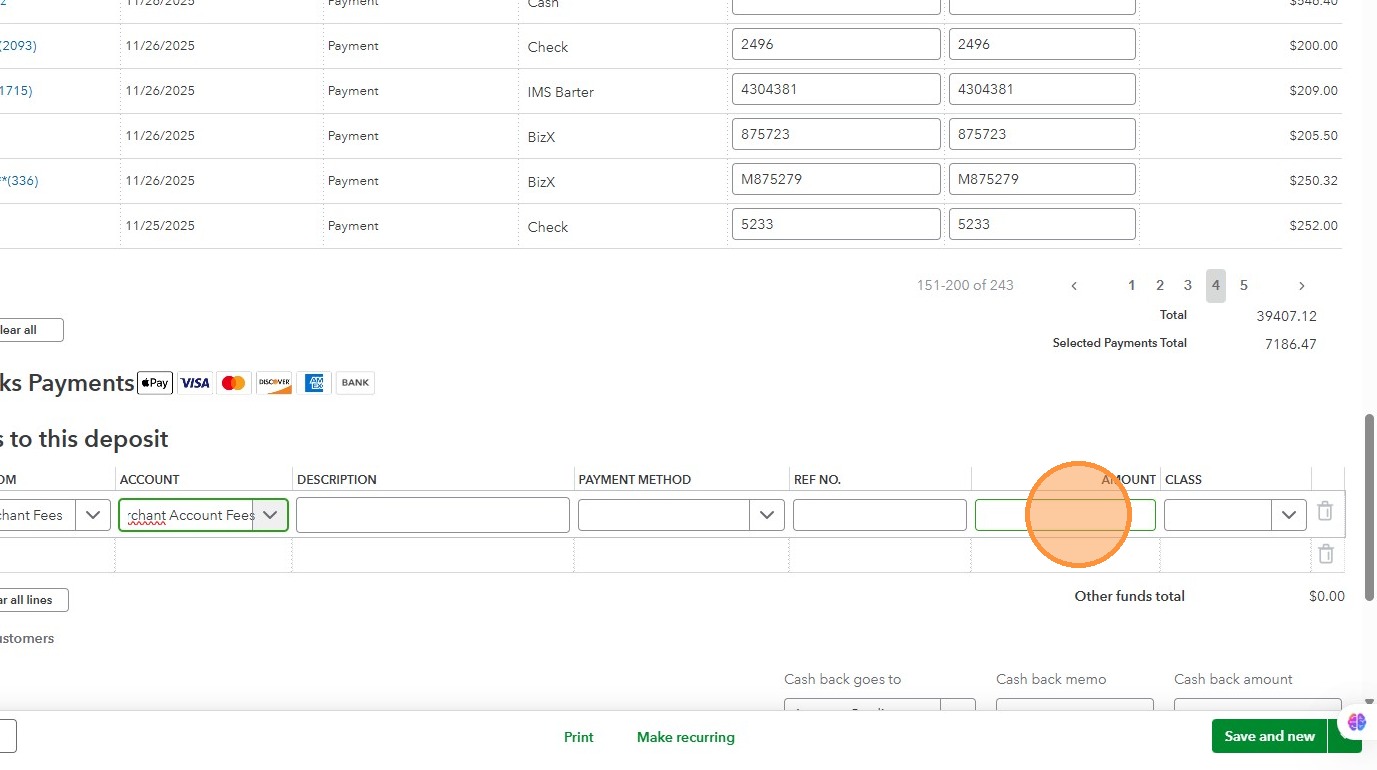
23. In this example it is 19.16