
How to Match Bank Transactions in QuickBooks
1. Log in to Quickbooks Online
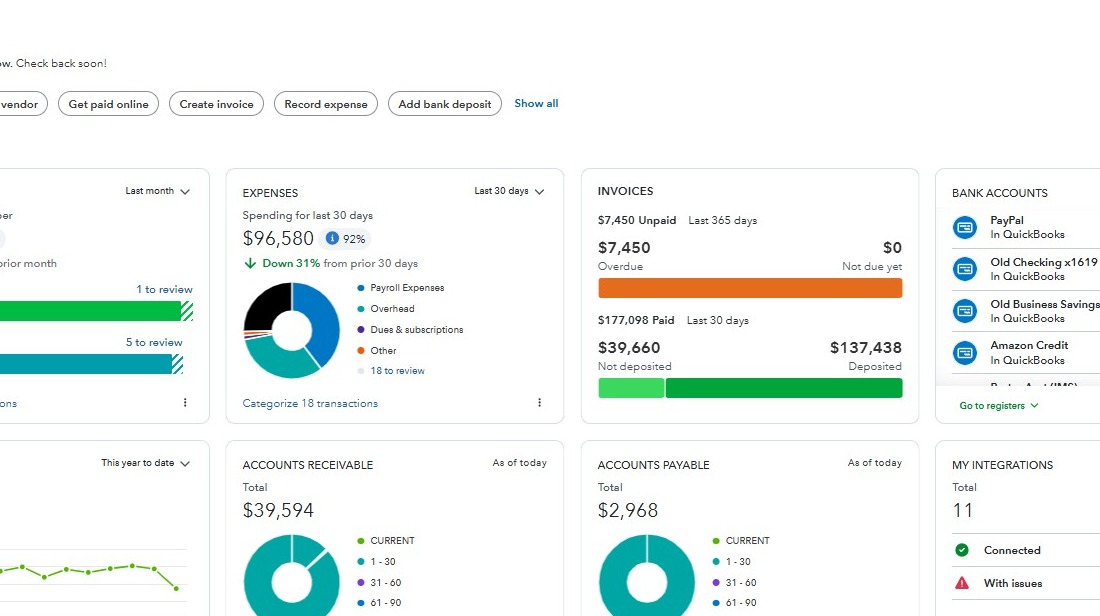
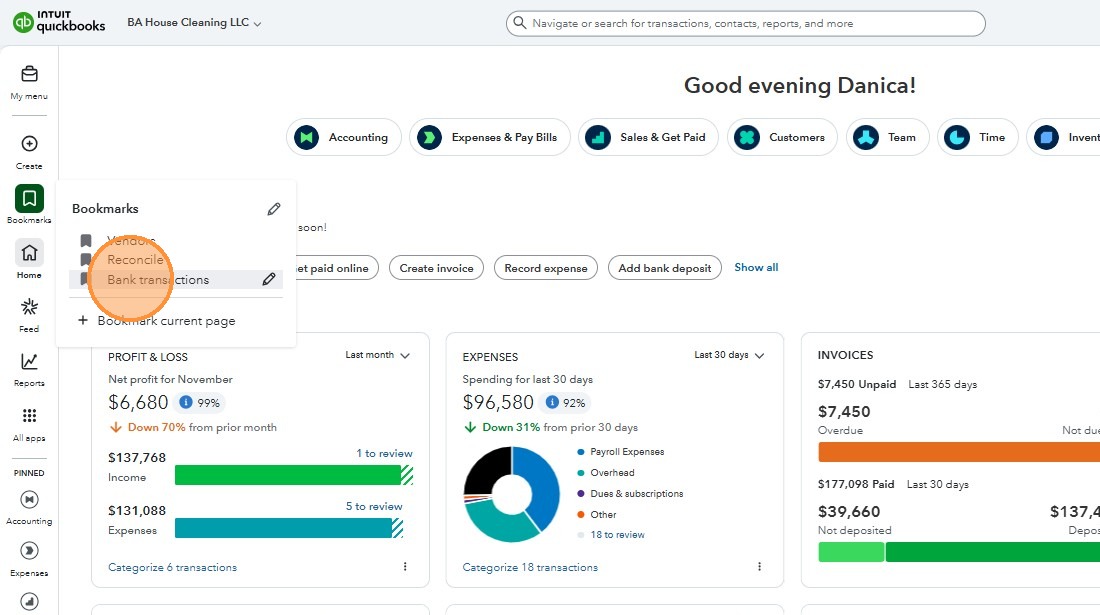
2. Click “Bookmarks” then select “Bank transactions”
3. Scroll all the way to the left to select the credit card
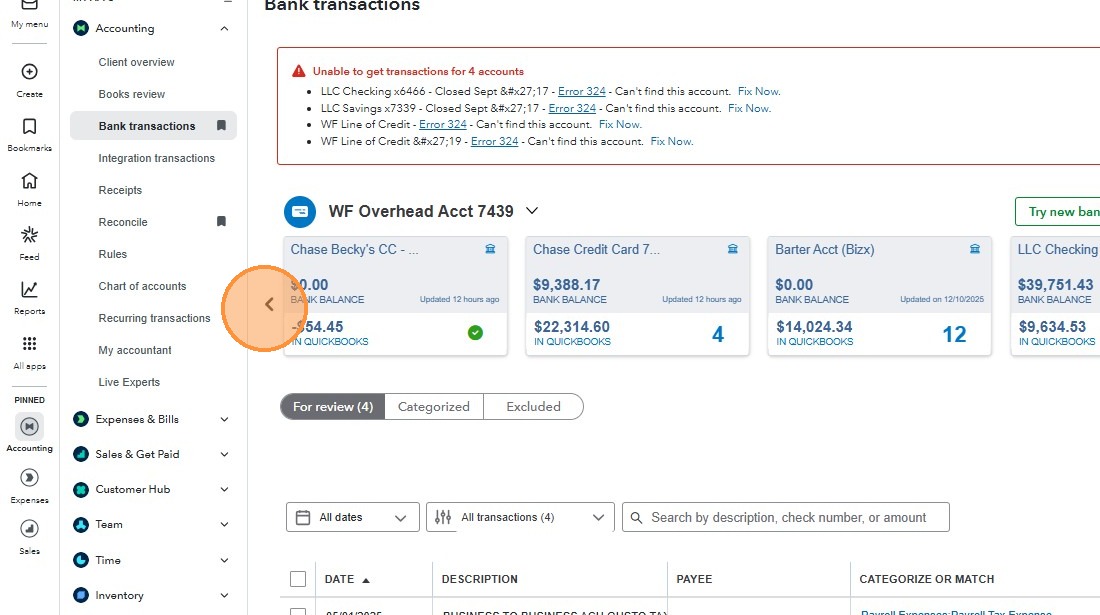
4. Choose the bank account or credit card that has an outstanding transaction, in this example we choose this card with 4 remaining uncategorized
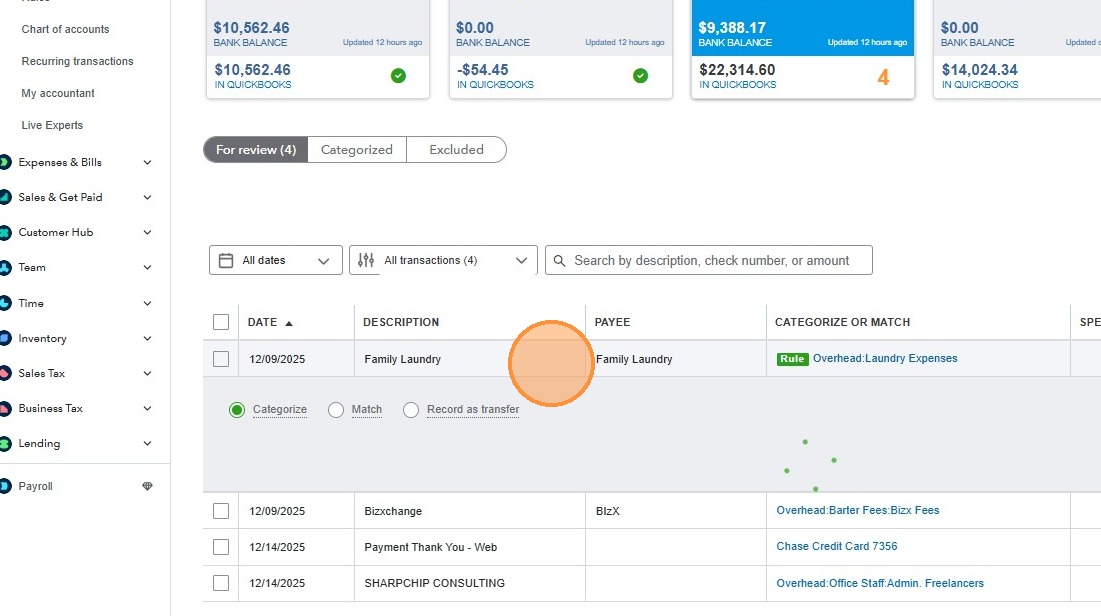
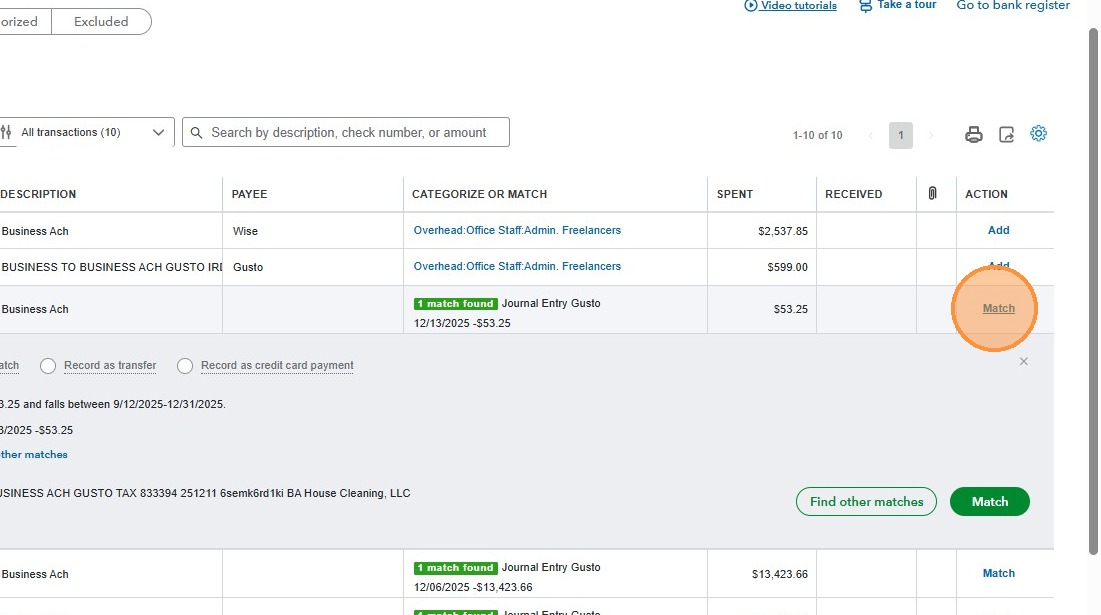
5. Select the transaction, if it has a match found, check the match to see if it is really for that transaction. Make sure to double check the payee and and the category. Click “Add” once confirmed.
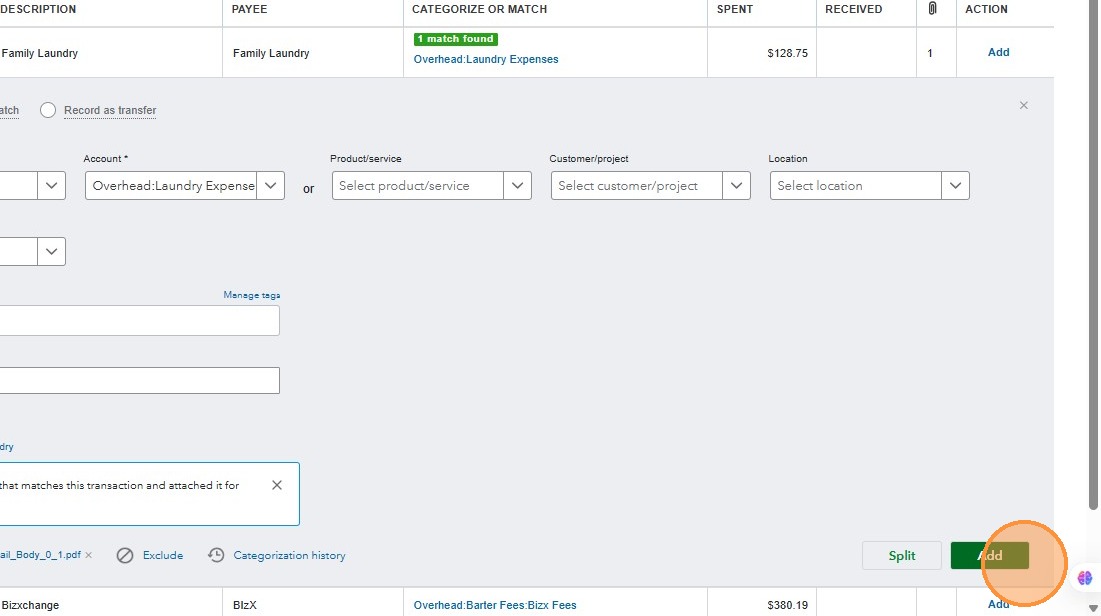
6. Then, move to the next transaction
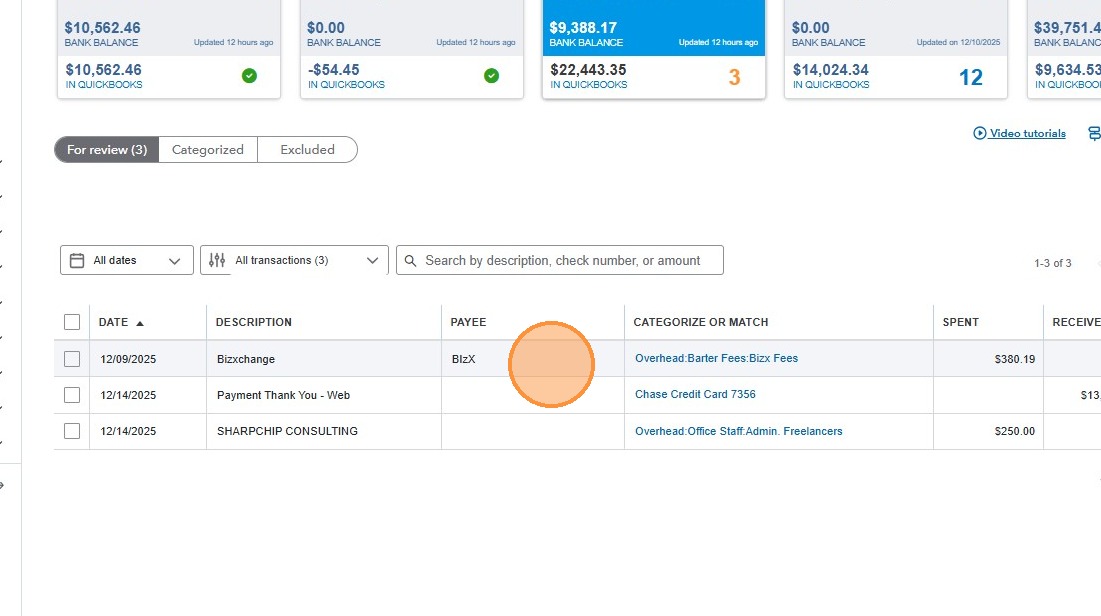
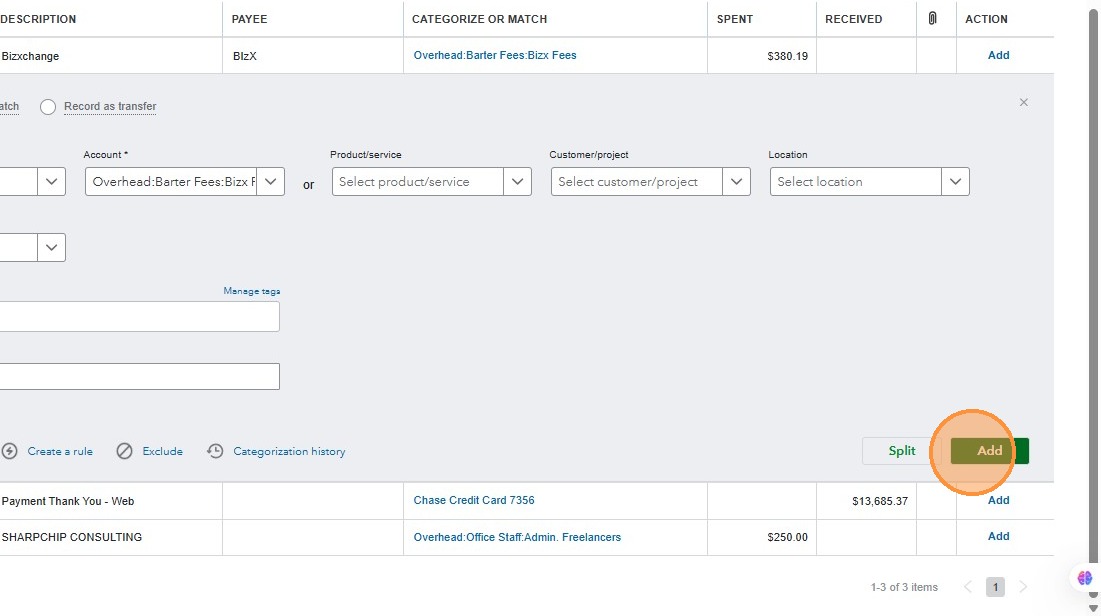
7. Always make sure you add the correct “Payee” and “Account”. Once confirmed, Click “Add”
8. Move to the next bank account
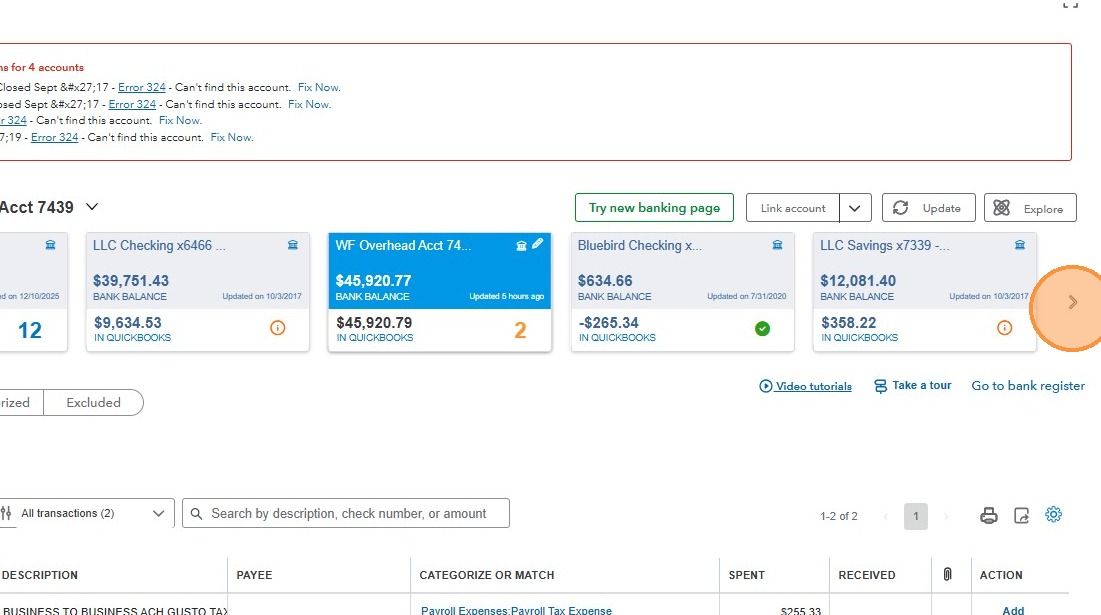
9. Select the bank accounts with outstanding transactions
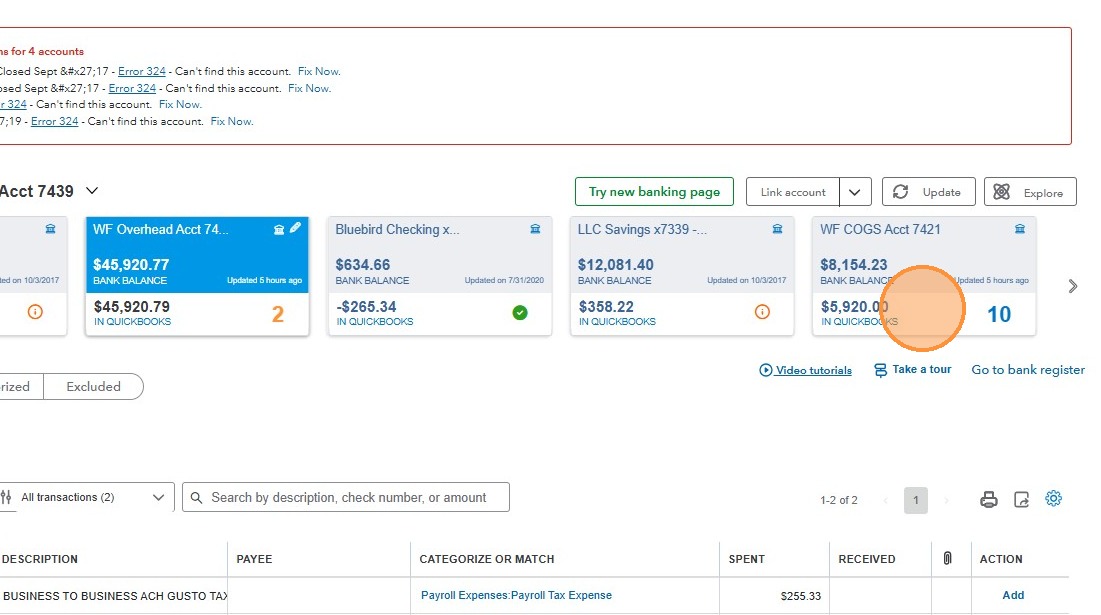
10. Click “Match” if you have confirmed that the journal entry is related to the transaction
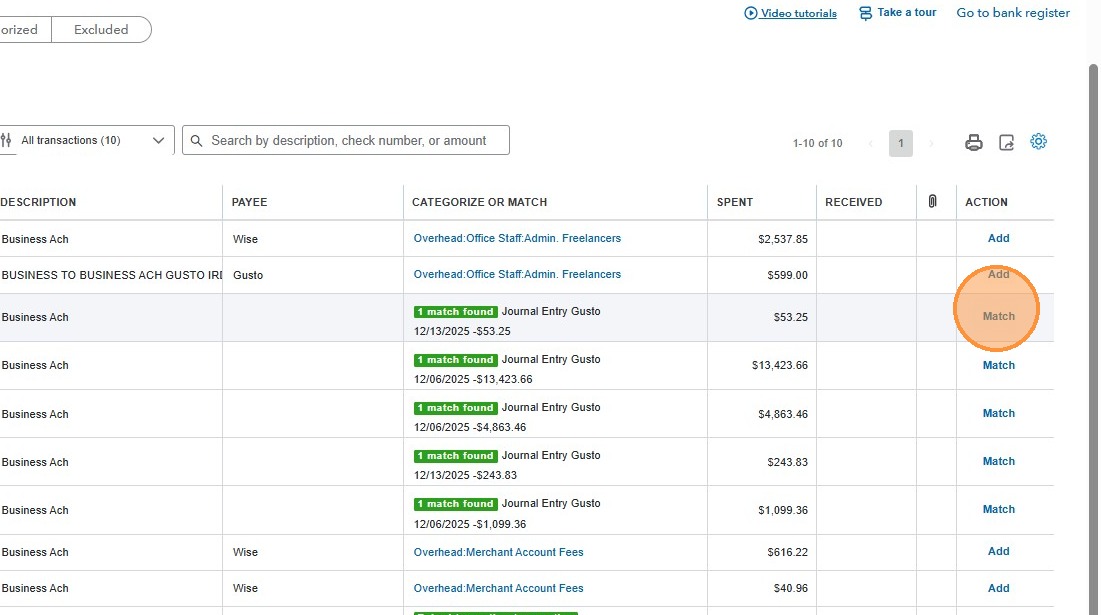
11. Click “Match”
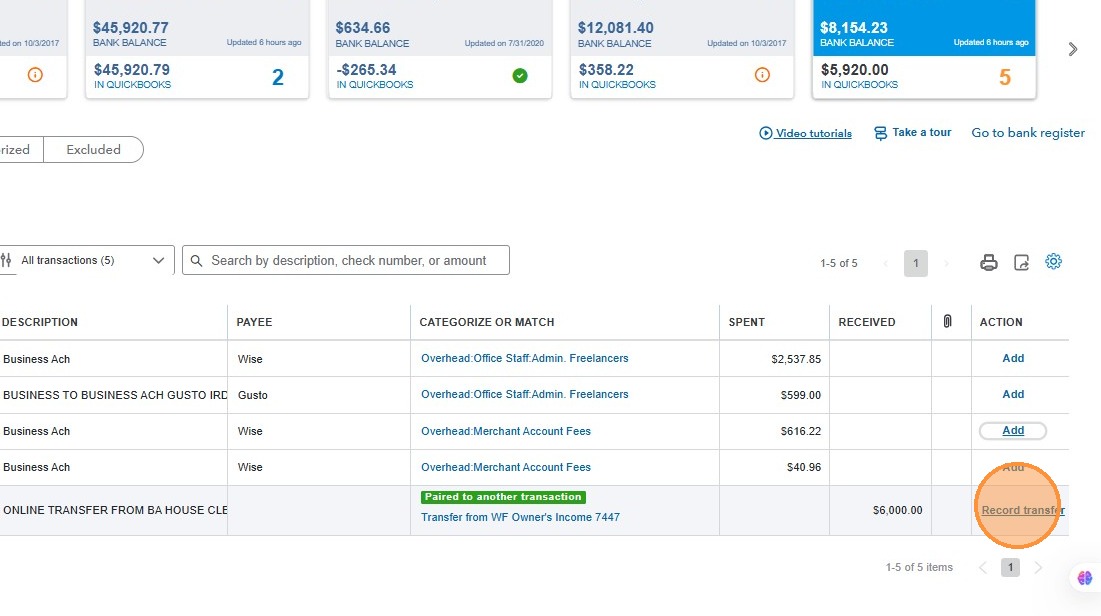
12. If you see an interbank transfer, make sure it is a match on the other bank account then Click “Record transfer”
Made with Scribe