Office Resources
How to Install GTranslate on GHL Forms and Surveys
Purpose
Add an English/Spanish (EN/ES) language toggle to GoHighLevel (GHL) forms and surveys so users can switch between languages. This is typically used for CT-facing content.
Step 1: Open the Form or Survey
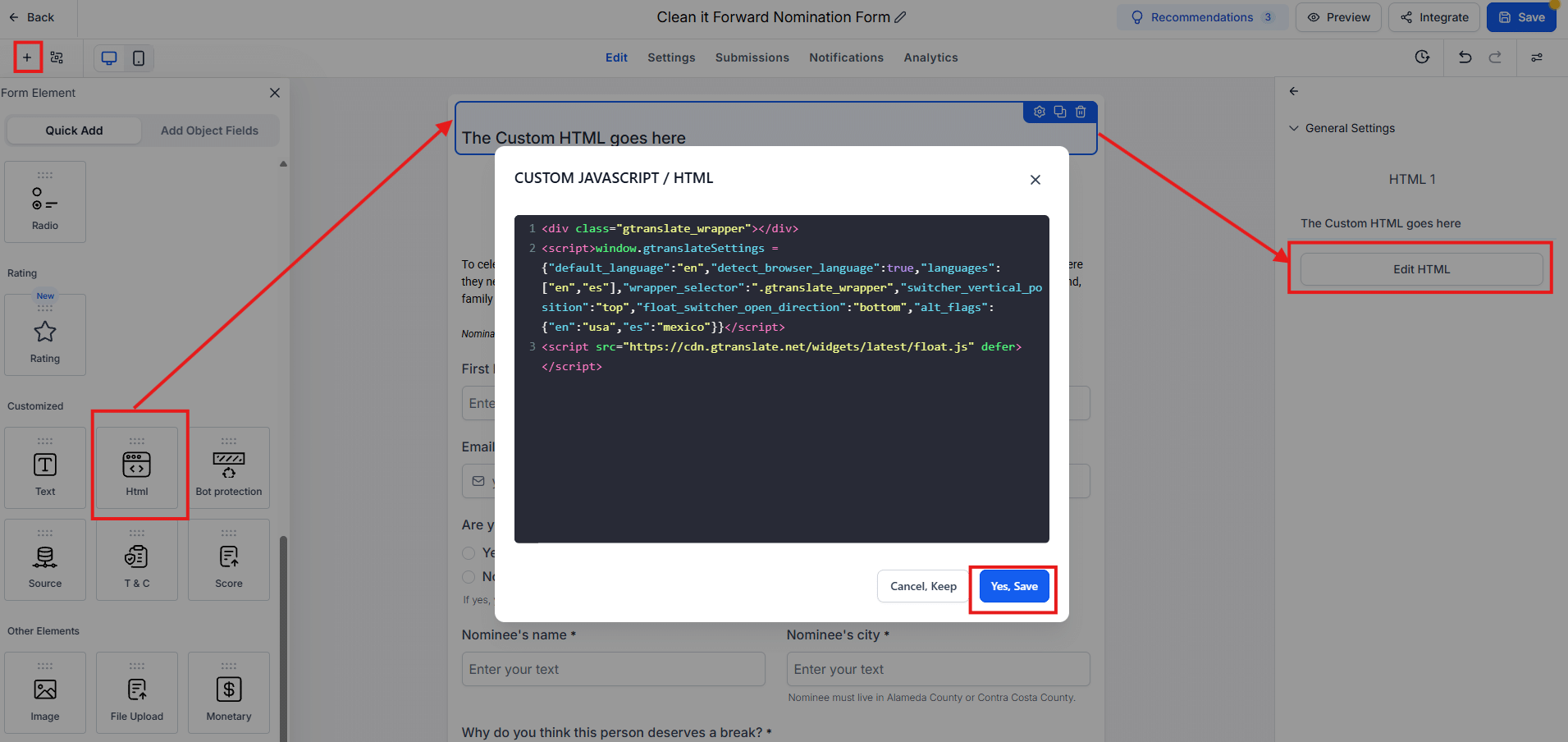
- Open the GHL form or survey you want to make bilingual.
- Click Add Form Element.
- Under Customized, find the HTML element.
- Drag the HTML element to the very top of the form or survey.
Important: The HTML element must stay at the top for the language toggle to appear in the correct position.
Step 2: Add the GTranslate Code
- Click the HTML element and select Edit HTML.
- Paste the following code:
<div class="gtranslate_wrapper"></div>
<script>
window.gtranslateSettings = {
  "default_language": "en",
  "detect_browser_language": true,
  "languages": ["en", "es"],
  "wrapper_selector": ".gtranslate_wrapper",
  "switcher_vertical_position": "top",
  "float_switcher_open_direction": "bottom",
  "alt_flags": {
    "en": "usa",
    "es": "mexico"
  }
}
</script>
<script src="https://cdn.gtranslate.net/widgets/latest/float.js" defer></script>- Click Yes, Save.
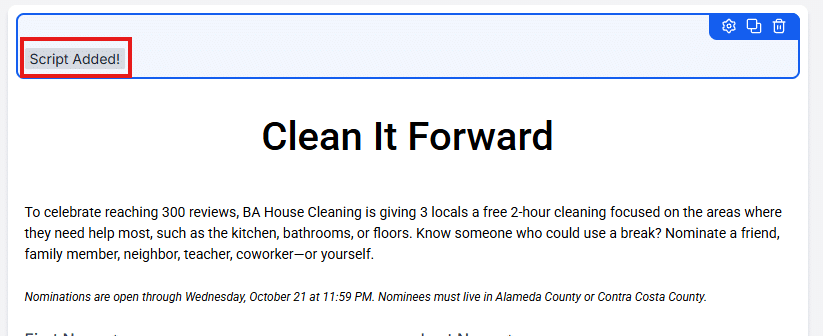
- The HTML element should now display “Script Added!”
- Save the form or survey itself.
Note: GHL may display a warning about custom HTML widgets. This is expected when adding this script and can be ignored.
Step 3: Test the Language Toggle
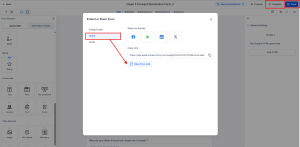
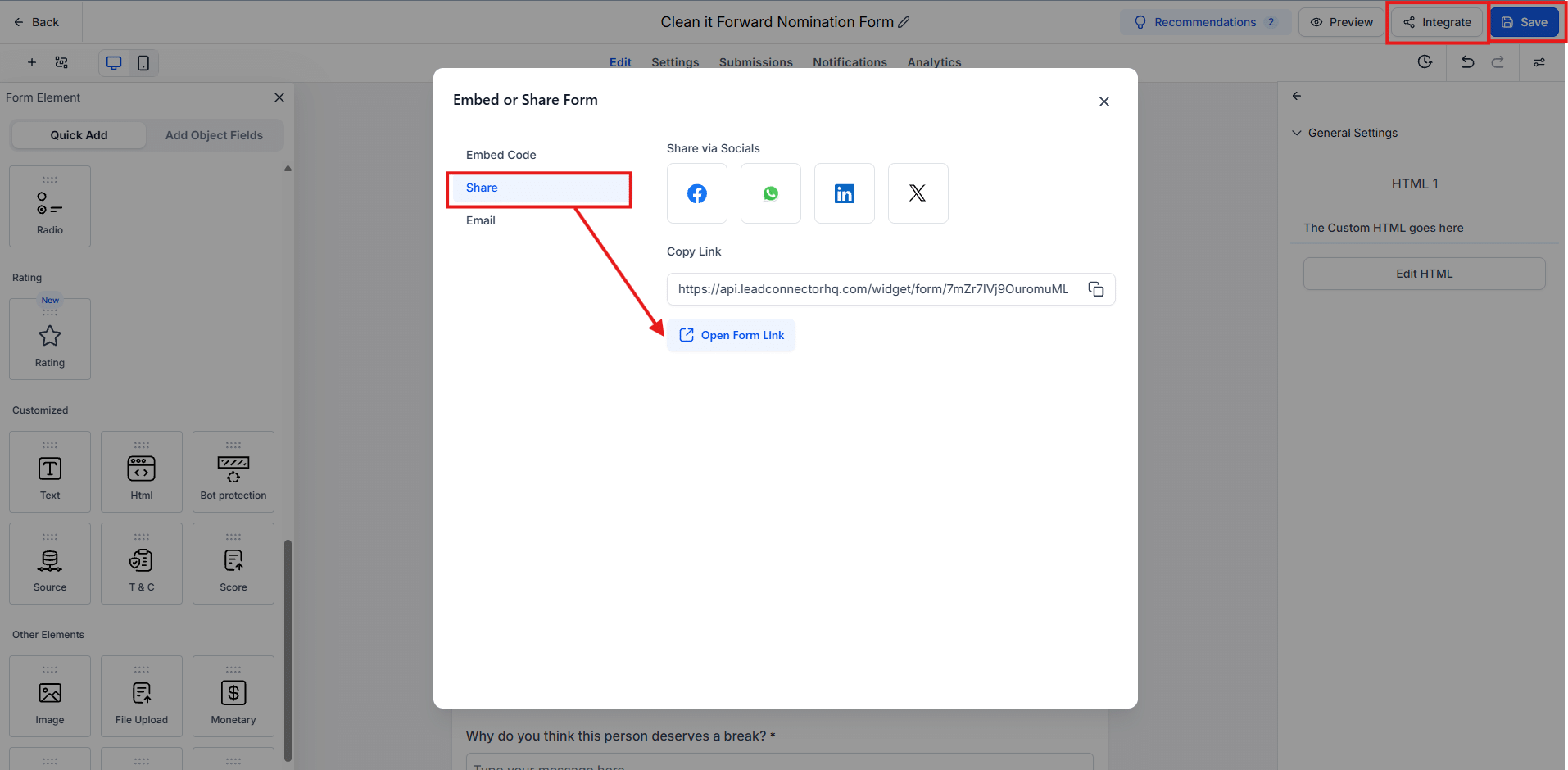
- Open the form or survey’s Integrate section.
- Select Share.
- Click Open Form Link.
- Check if the ES/EN language toggle appears.
- Test switching between English and Spanish.
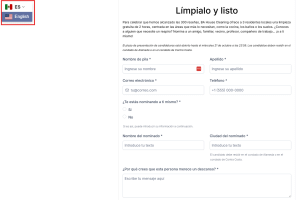
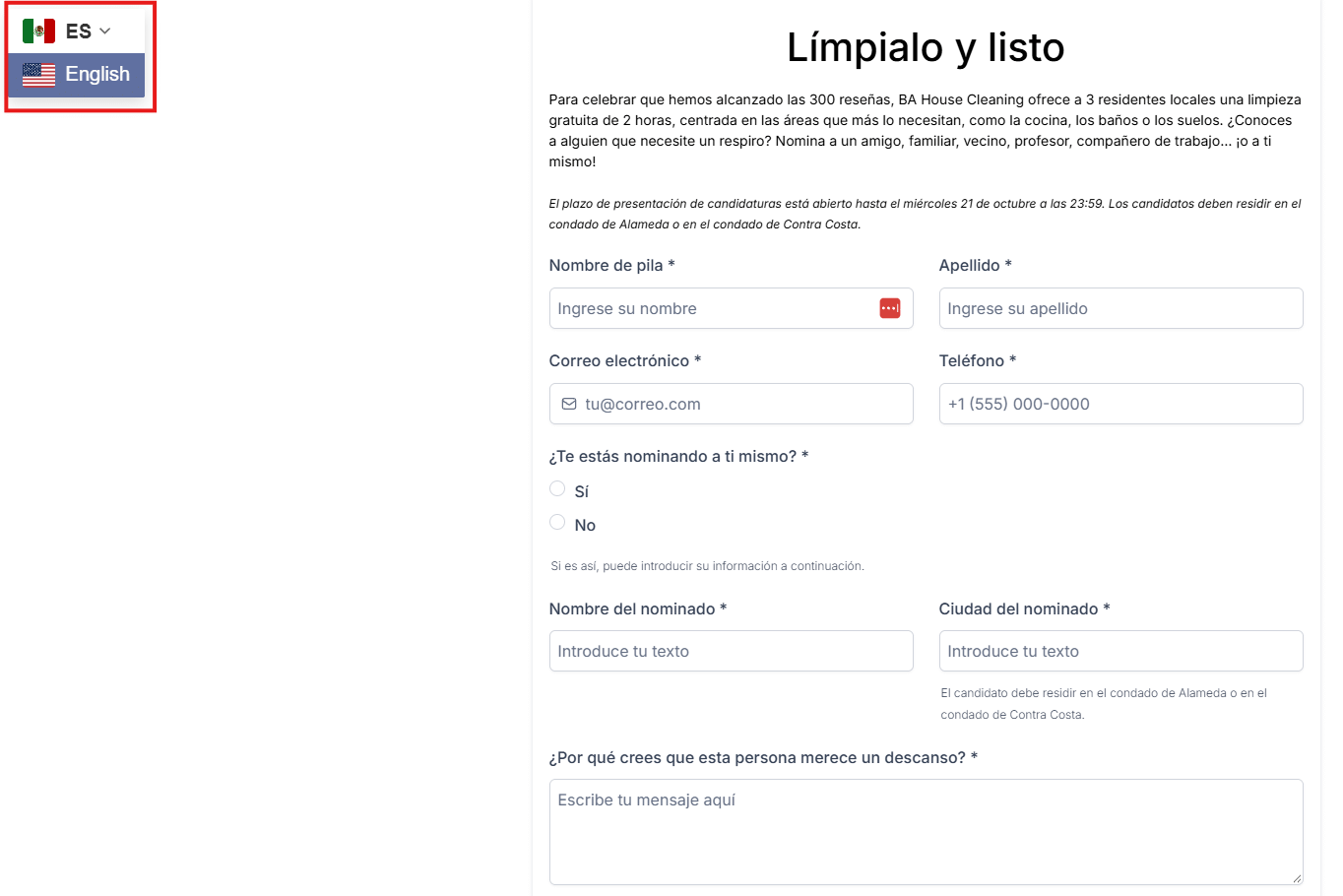
If the toggle appears and the form translates correctly, the installation is successful.
Troubleshooting: Updating the GTranslate Code
If the code stops working or you need to change the widget’s settings:
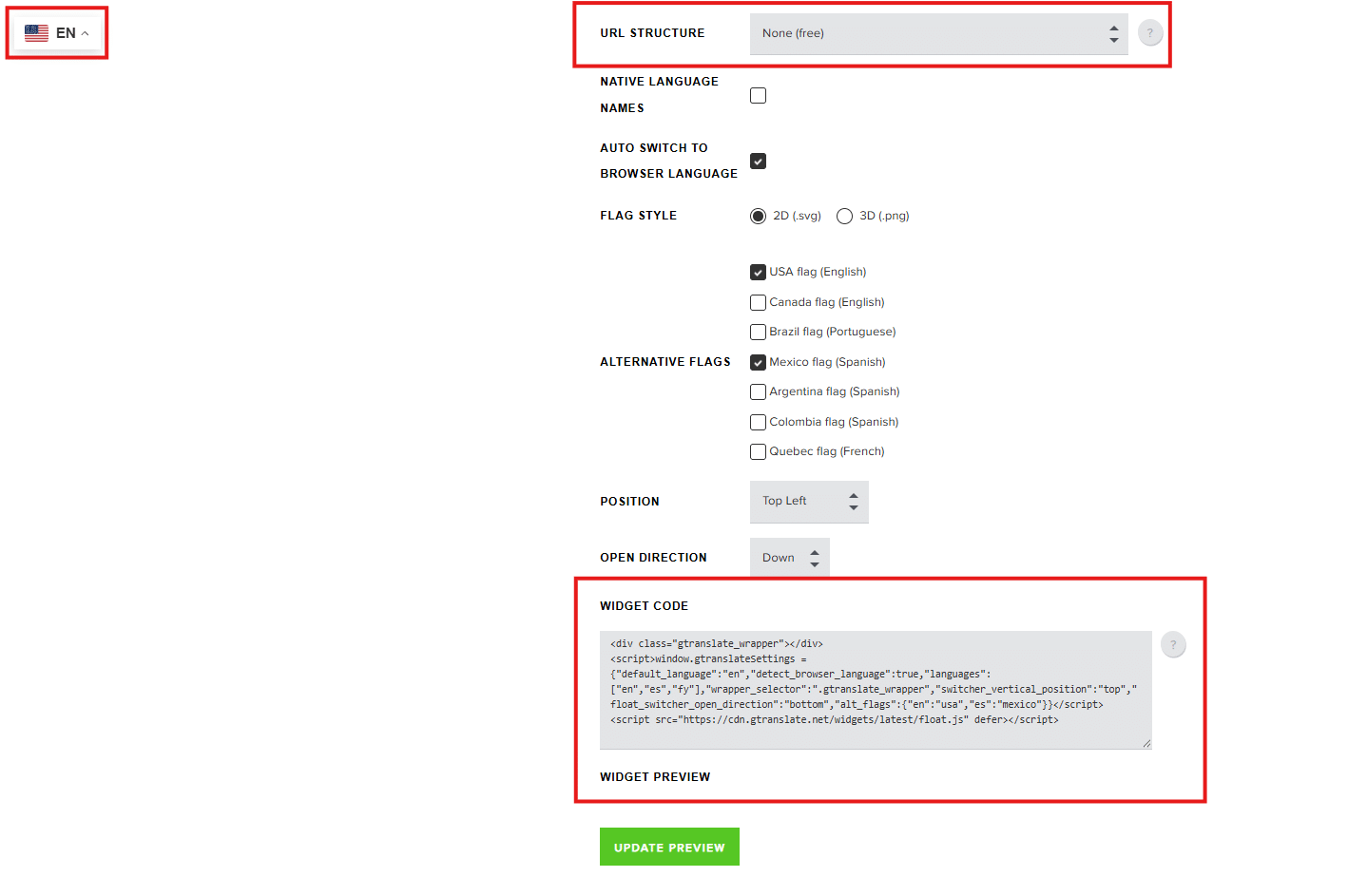
- Go to GTranslate Website Translator Widget.
- Customize the widget settings as needed, including languages, flags, and appearance.
- Set URL Structure to None (Free).
- Check the preview in the upper-left corner. Click Update Preview whenever you make changes.
- Copy the updated code provided near the bottom of the page.