
Office Resources
How to Create and Print Employee ID Cards
Use this guide to create an employee ID card using the Brainstorm ID Maker and print it on a PVC card.
What You’ll Need
- Employee photo
- BA House Cleaning ID card template
- Brainstorm ID Maker
- Canon M PVC Card Tray (120 x 120 mm)
- Printable PVC ID card
- Black PVC card slate/tray
Step 1: Download the ID Card Template
- Open the BA House Cleaning ID card template:
https://drive.google.com/file/d/1KJgzD8yXw18VGjdsbATyVrJifzXG8Hl-/view?usp=sharing - Download the template to your computer.
Note: You will not be able to see the template properly until it has been uploaded into the Brainstorm ID Maker.
Step 2: Open Brainstorm ID Maker
- Go to:
https://brainstormidsupply.com/id-maker/ - Upload the downloaded ID card template.
Step 3: Add the Employee Photo
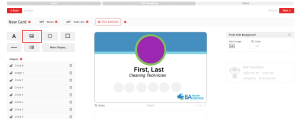
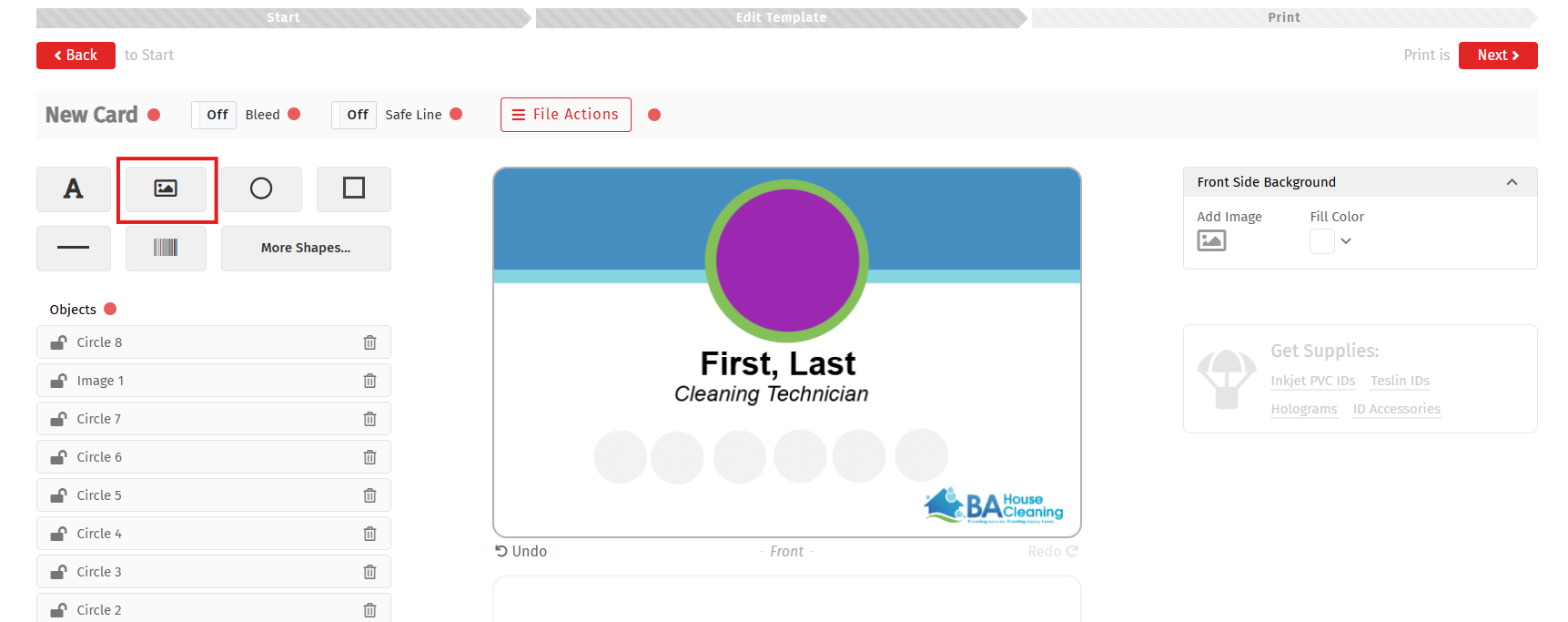
- On the left-hand side of the editor, click Image, located next to the “A” text tool.
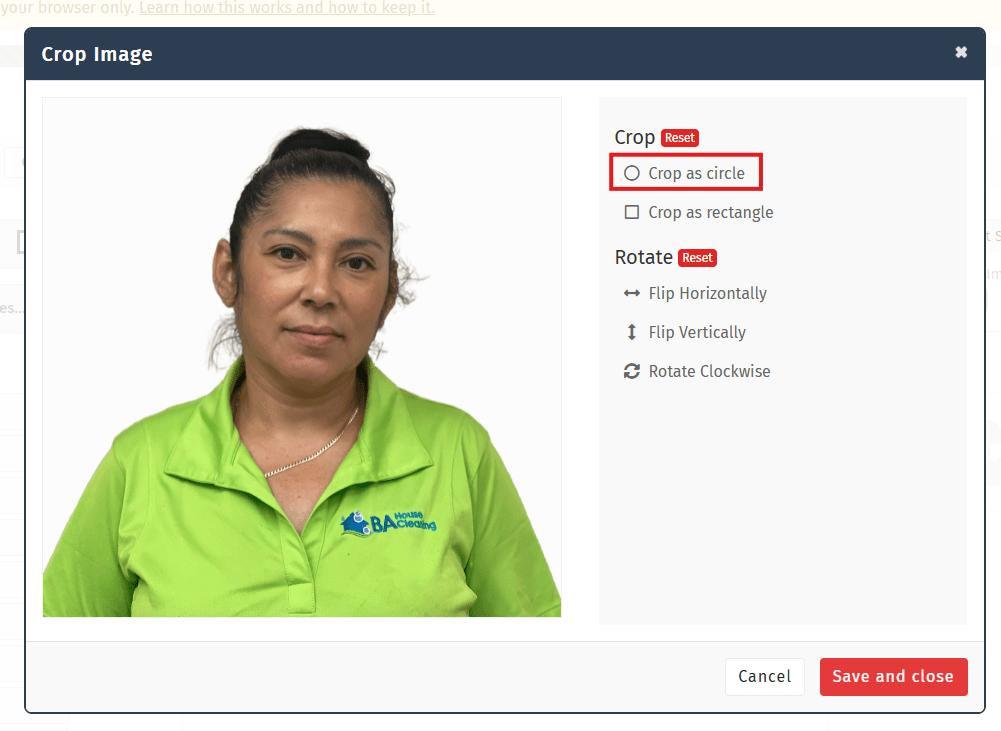
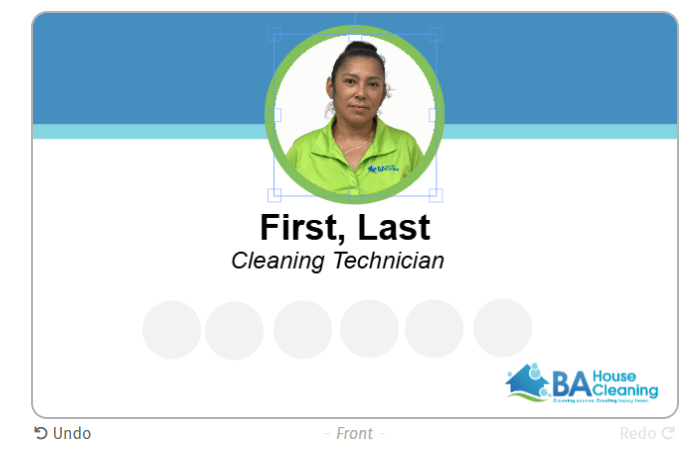
- Upload the employee’s photo. Use “Crop as circle” option.
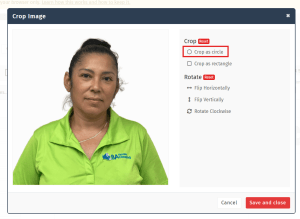
- Position the crop to capture the employee’s full face. Click “save and close” when done.
- Adjust position of the now circle photo to the ID template. Resize and reposition until it covers the purple circle.

Step 4: Update the Employee Name
- Double click the “First, Last” text on the ID template.
- Replace the existing name with the employee’s correct name.
- Double-check the spelling before continuing.
Step 5: Prepare the Card for Printing
- Click Next in the upper-right corner.
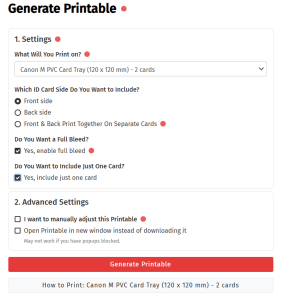
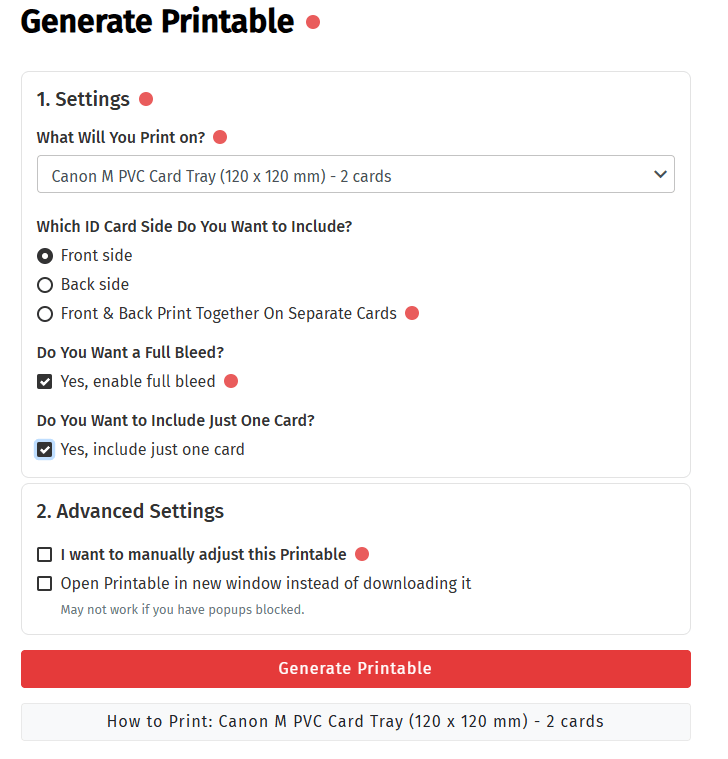
- Under What will you print on?, select:
Canon M PVC Card Tray (120 x 120MM) - Under Which card side do you want to include?, select either:
- Front, or
- Back (strip side)
Important
Only print one side at a time. Do not select both Front and Back at the same time.
- Under Do you want full bleed?, select:
Yes - Under Do you want to include just one card?, select:
Yes - Click Generate Printable.
Printing the ID Card
Step 6: Open the PDF
- Open the generated PDF using Adobe Acrobat Reader.
- Do not print directly from the browser or the default Windows PDF viewer.
Important: Adobe Acrobat Reader is recommended because some default PDF applications may not provide the correct scaling controls.
Step 7: Open the Print Settings
- In Adobe Acrobat Reader, go to: