
Office Resources
How to Add a Pre-Onboarding Checklist Task for New Hires in ClickUp
The purpose of this pre-onboarding checklist is to track all tasks that are needed to complete before a new hire’s start date.
Step 1: Go to ClickUp
- Log in to ClickUp.
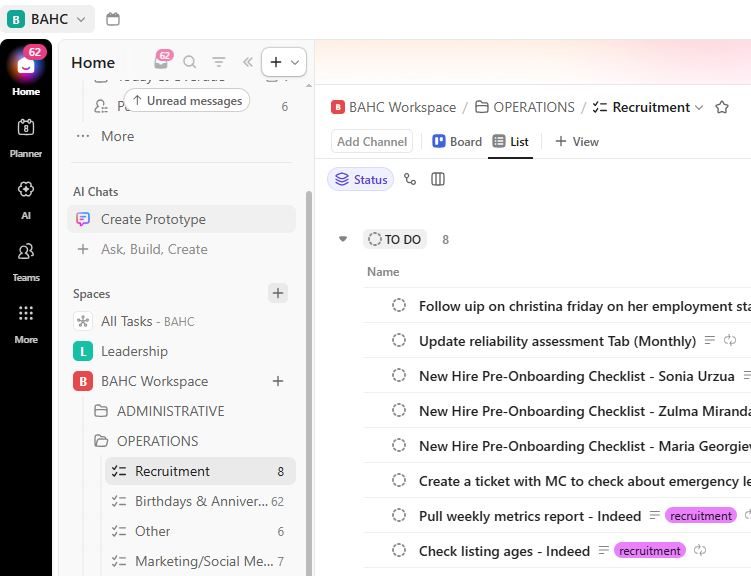
- Go to BAHC Workspace (left side corner), go to the Operations folder and click Recruitment.
Step 2: Create a Task
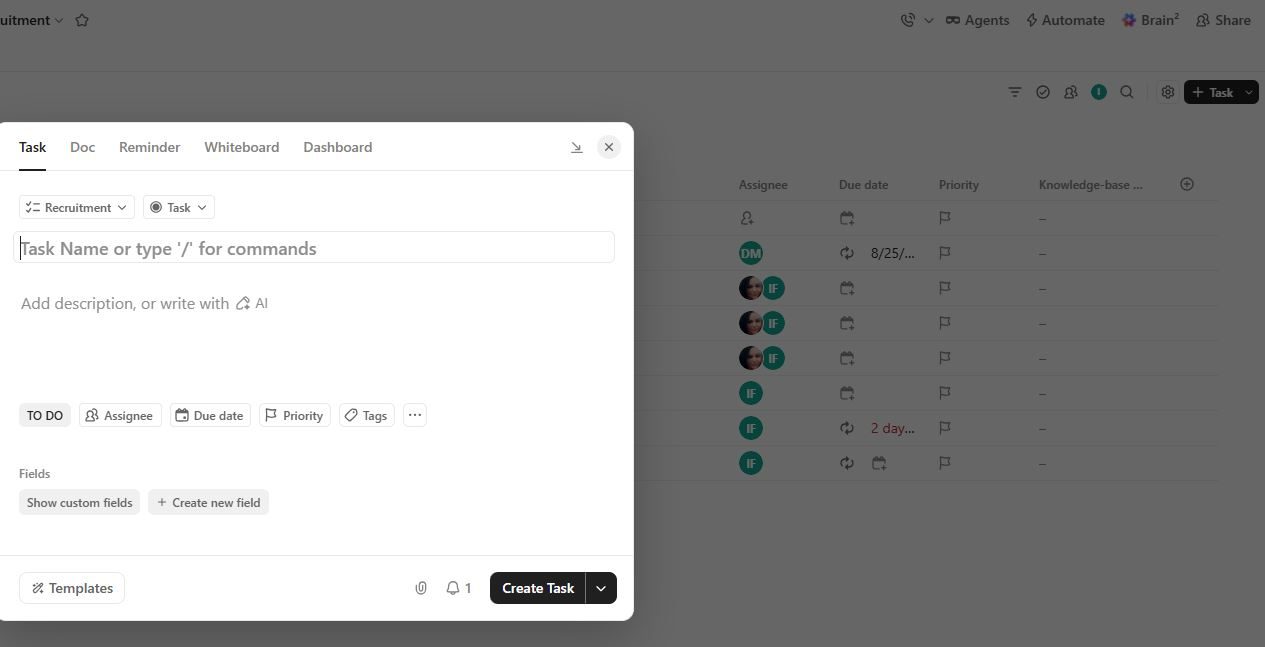
- On the right side corner, Click + New Task
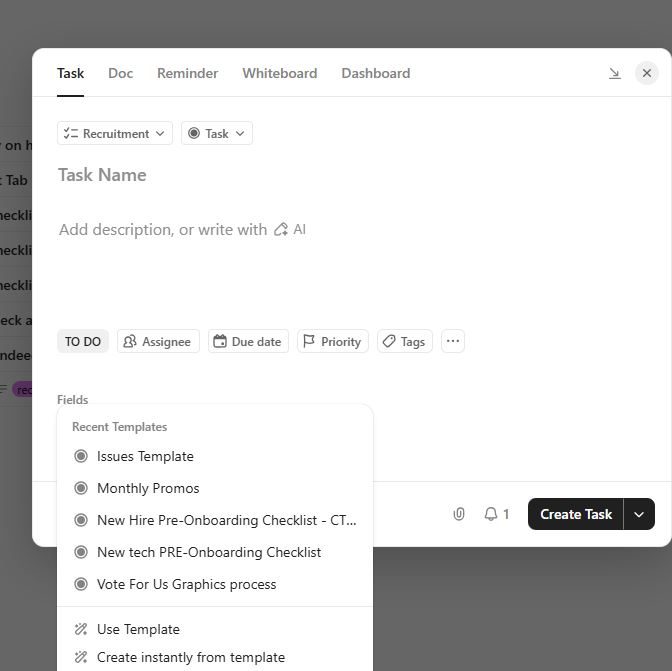
- Click Templates then select New Hire Pre-Onboarding Checklist – CT NAME
- Replace CT NAME with the employee’s name.
- Then click Create Task to save the work.
Take note: Double check the checklist items to ensure the correct template has been selected before saving the work.
Step 3: Assign Checklist Items
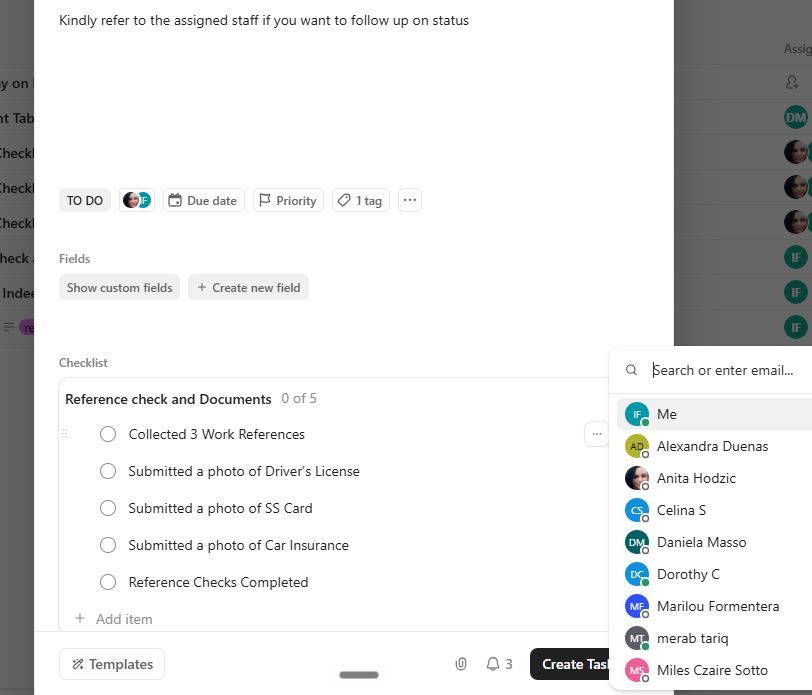
- Click the person icon, and select the team member responsible for the task. (Automatically assigned to: People Ops & Recruiting VA). Kindly update the assignee as needed.
Example:
☐ Collected 3 Work References → Ingrid
☐ Company Shirts Ordered/Issued → Alexandra
Step 4: Save Your Work
ClickUp saves changes automatically.
No manual save is required.