Office Resources
How To Add a Person To The Group Interview Manually
1. Go to GHL (Anita Automates): https://app.gohighlevel.com/v2/location/NwAq3Y2AXVLf9V94uUf3/dashboard
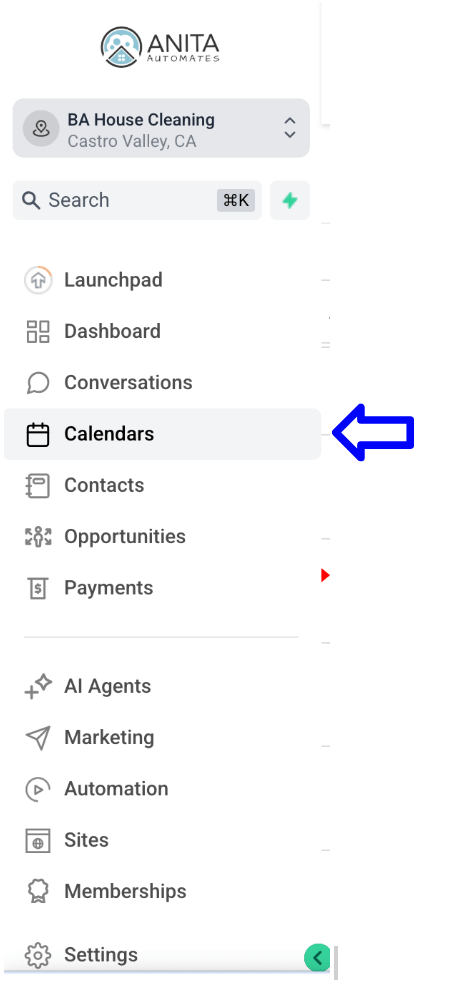
2. Select Calendars from the menu on the left.
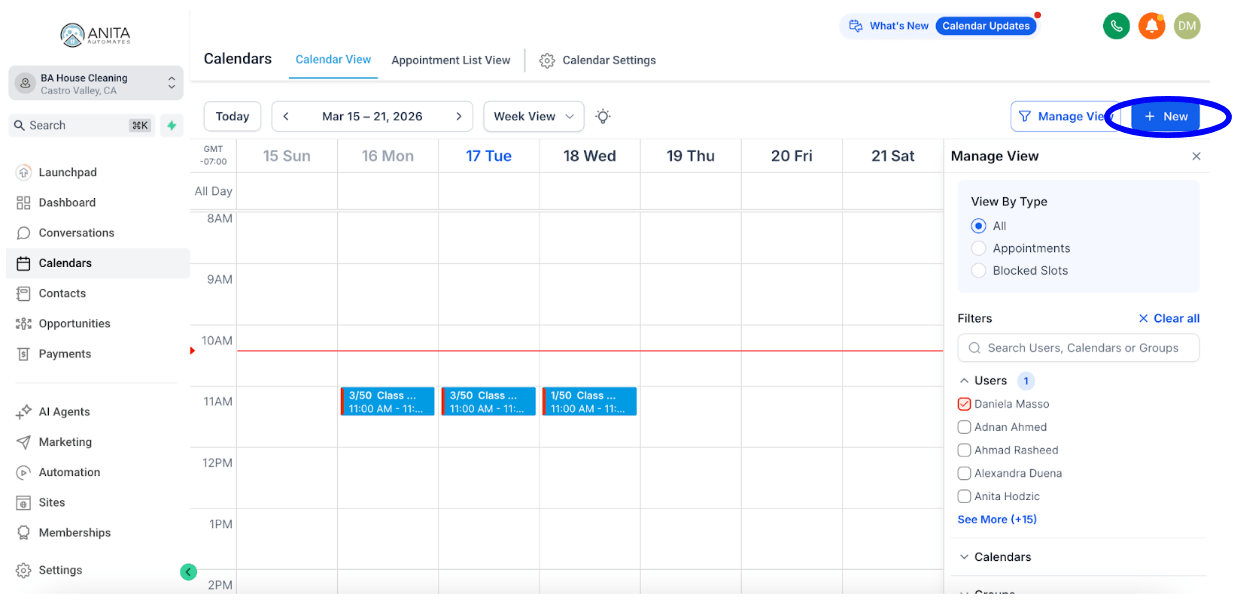
3. Select New from the menu on the right.
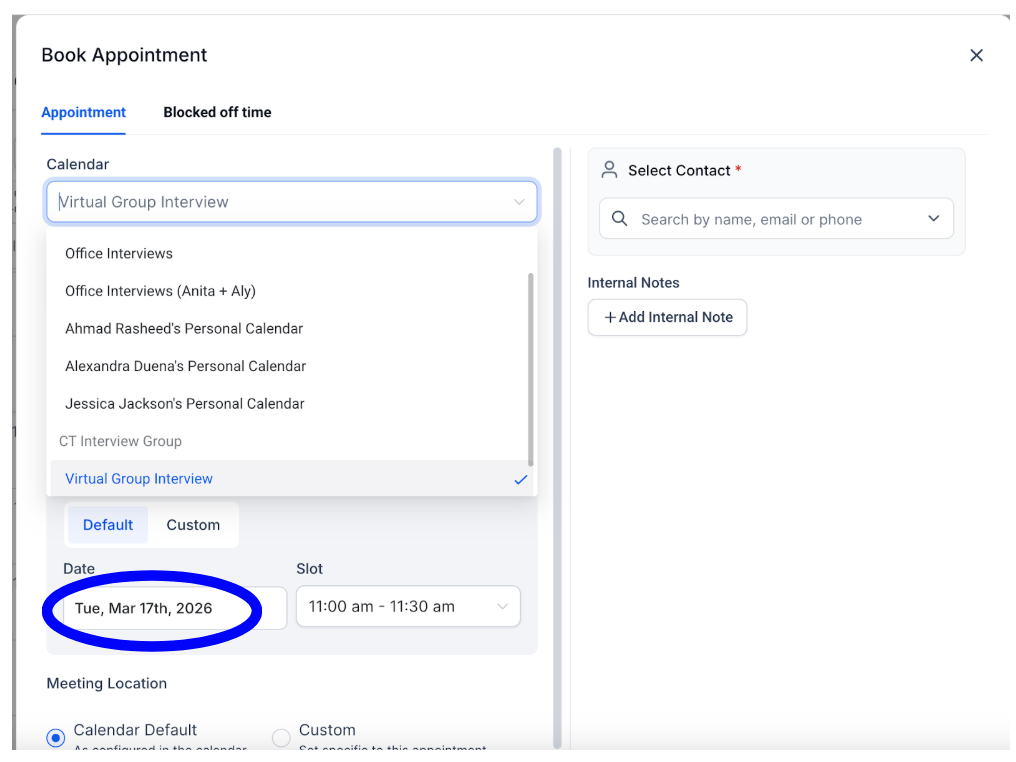
4. Select the Virtual Group Interview Calendar.
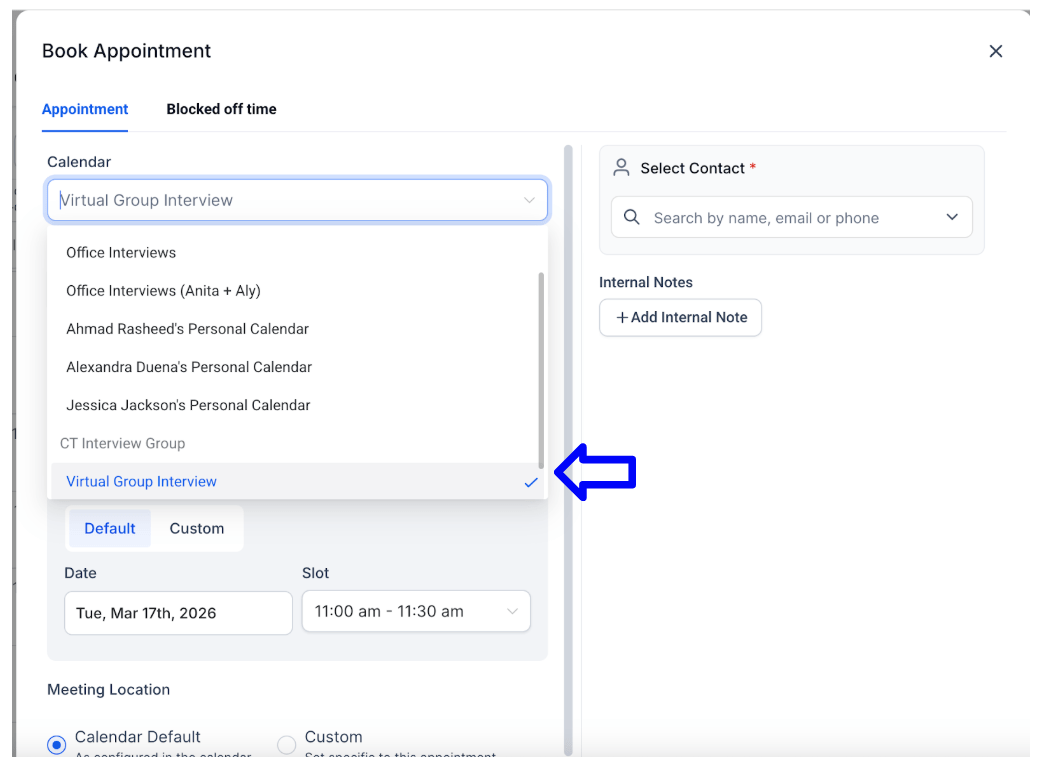
5. Select the Date of the appointment where you want to add the contact.
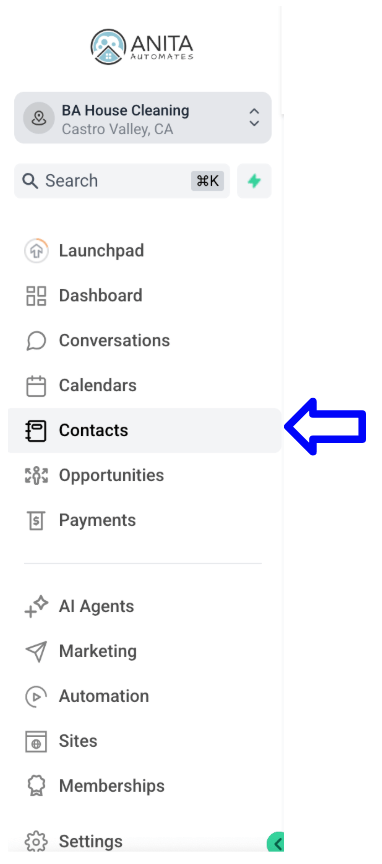
6. On another tab, select Contacts from the menu on the left.
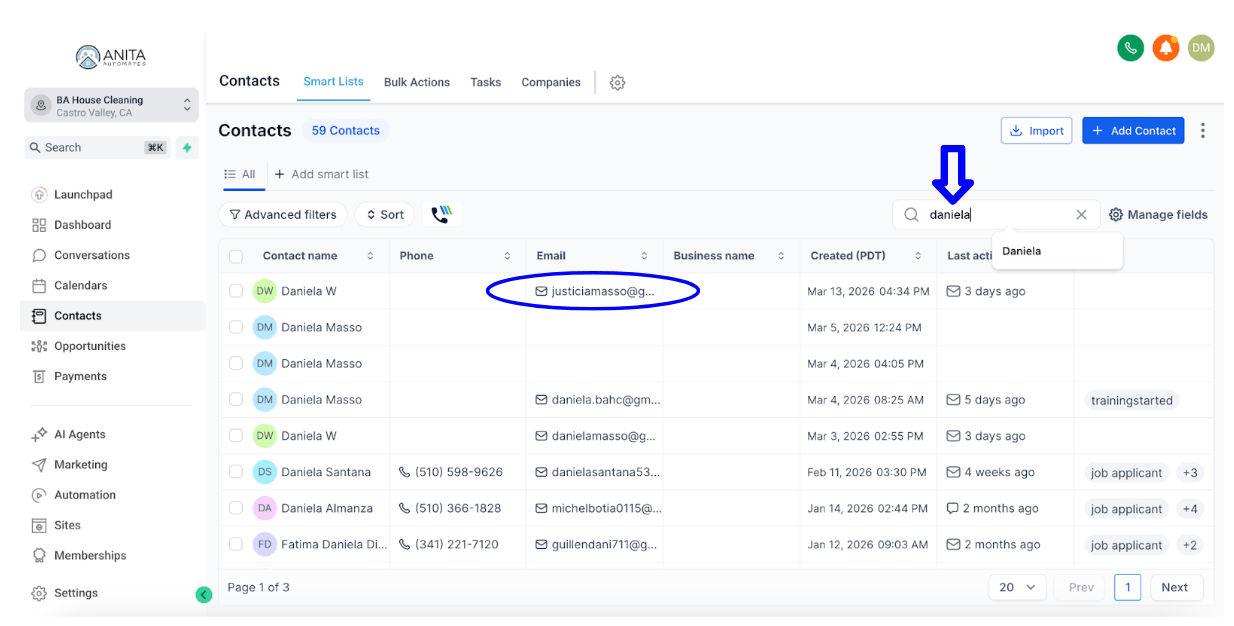
7. Search for the contact you want to add to the Group Interview and copy his/her email address.
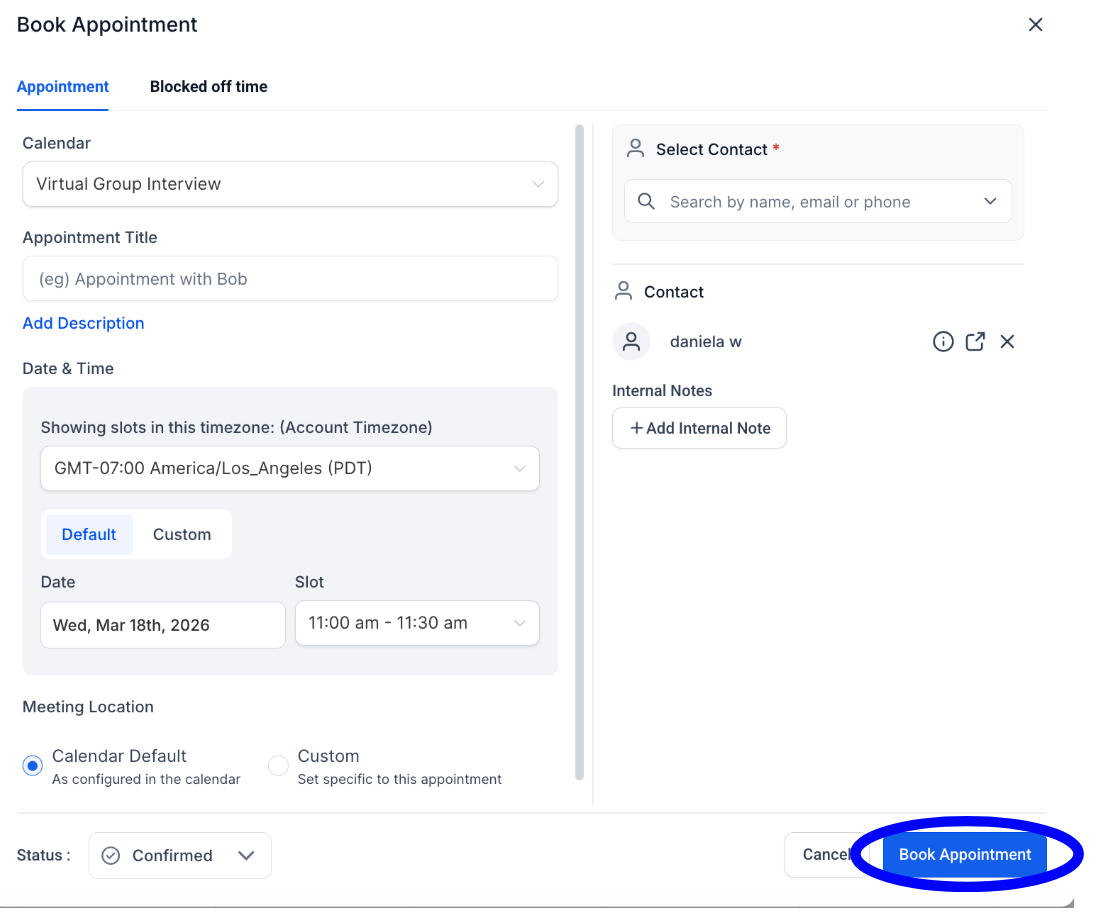
8. Go back to the other tab and paste the email address to find the contact you want to add to the group interview. Then select the contact.
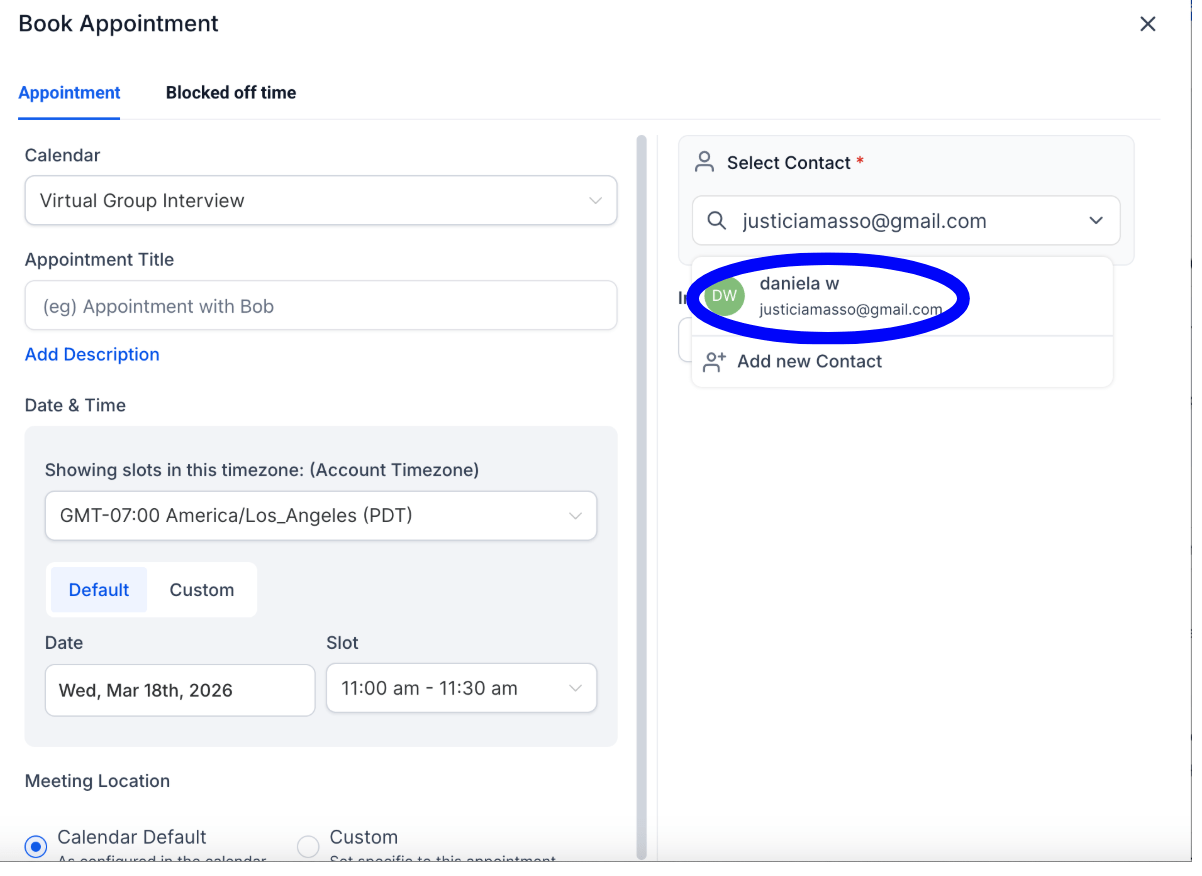
9. Select Book Appointment.