
Office Resources
< All Topics
Print
Cleaning For a Reason
Posted
Updated
Byadmin
0.5 out of 5 stars
1 rating
| 5 Stars | 0% | |
| 4 Stars | 0% | |
| 3 Stars | 0% | |
| 2 Stars | 0% | |
| 1 Stars | 100% |
Step 1: Contacting the Patient & Creating a Lead in MaidCentral
- Contact the patient to confirm their interest.
- Create a Lead in MaidCentral (Customers → Create Customer).
- Add the C4R Tag to the customer profile.
- Send an email using the C4R email template in MaidCentral.
- Send a C4R Intro email via MaidCentral.
- Send an SMS using the C4R Text 1 template, including available dates/times.
- Once the patient selects a date, obtain their priority list (up to 3 areas of the home to clean).
Step 2: Handling Non-Responsive Patients
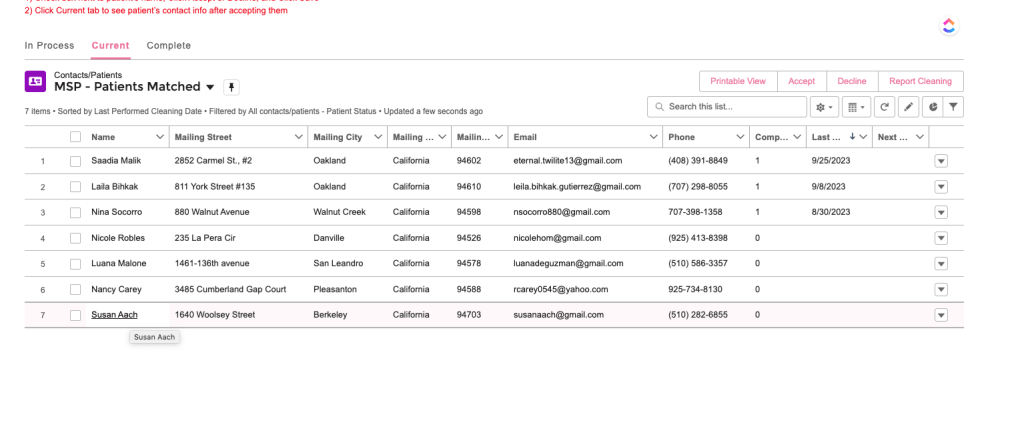
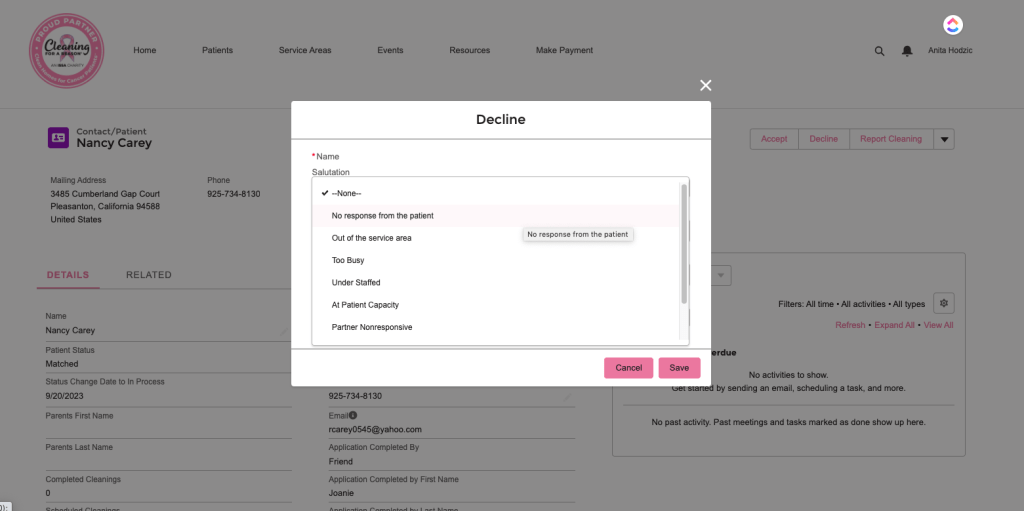
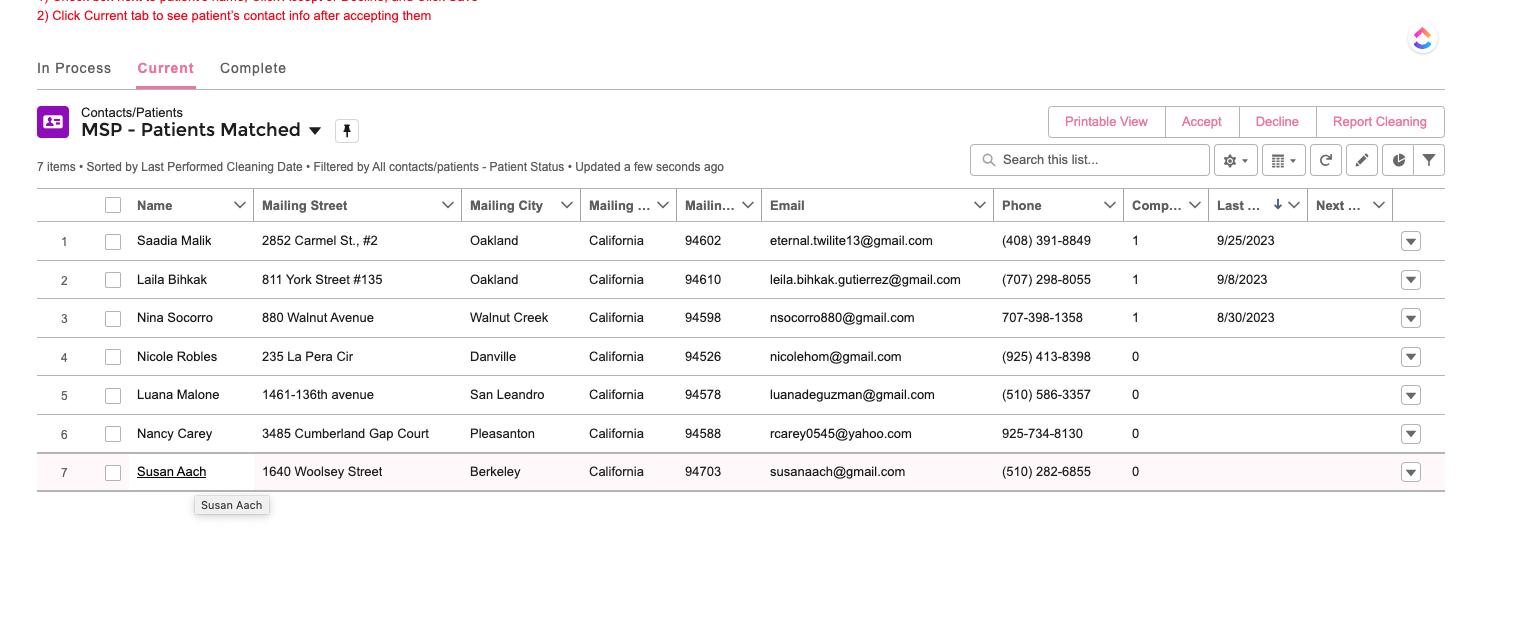
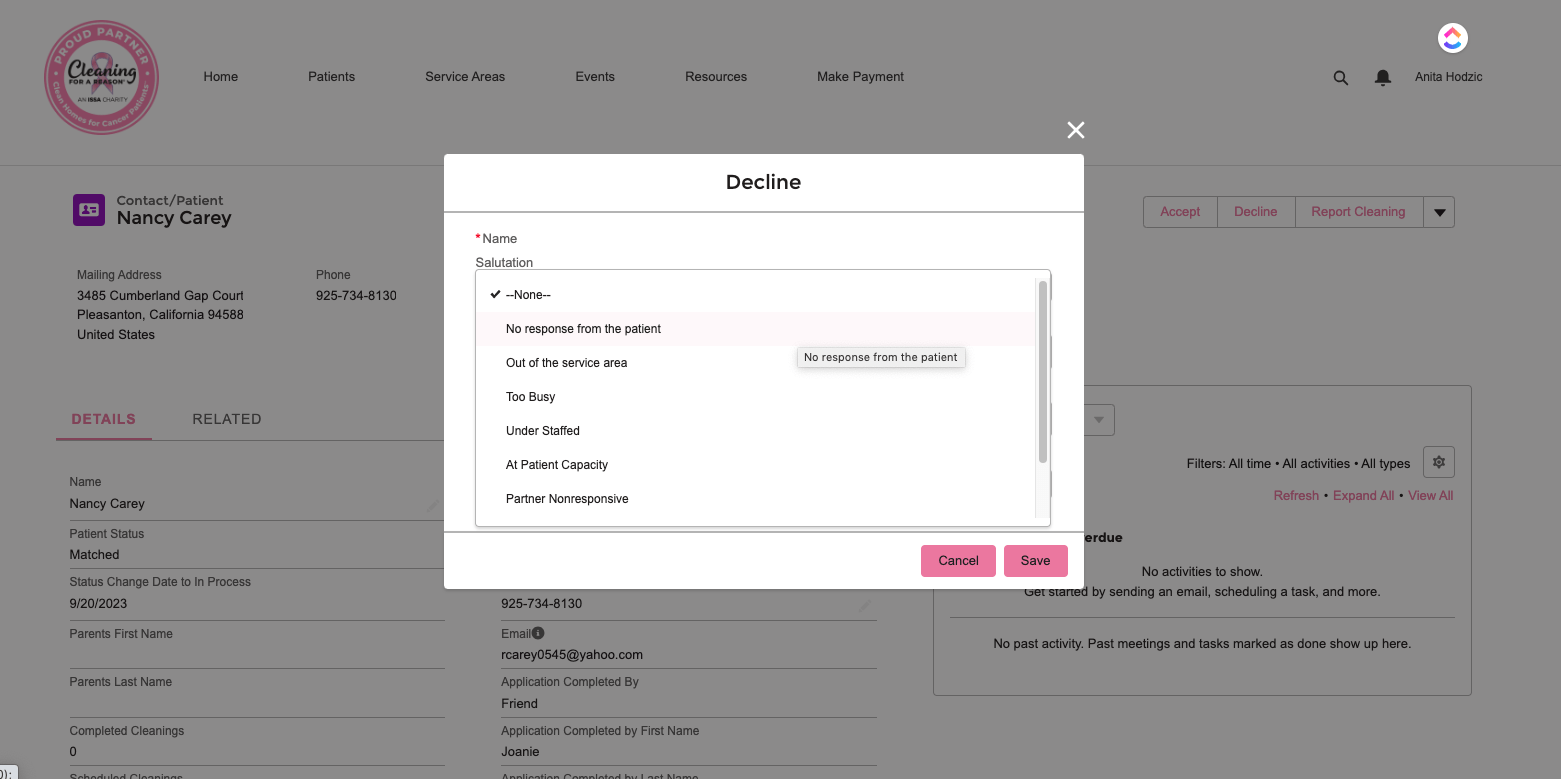
- If no response after 5 business days, log in to the C4R website and decline the patient due to unresponsiveness.
- Close the lead in MaidCentral with a note stating that the patient did not respond.
Step 3: Booking the Job in MaidCentral
- Create a Service Set
- Name:
C4R 2 hrs, Single (1x) - Preferences: No specific day/time required
- Name:
- Create a One-Time Job
- Duration: 2 hours
- Cost: $0
- Job Type: C4R Service Set
- Add Priority Notes
- Clearly list which 3 areas the Cleaning Technician should focus on.
- Add a note: “Customer will NOT be paying for this service.”
Step 4: Recording & Marking the Cleaning in C4R
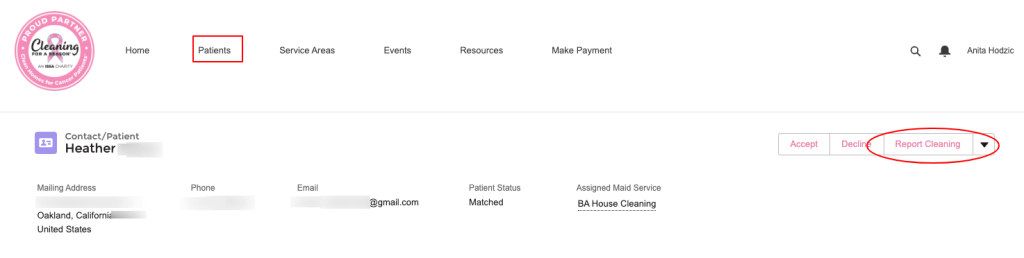
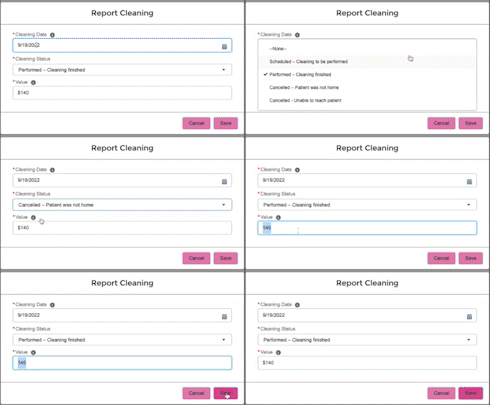
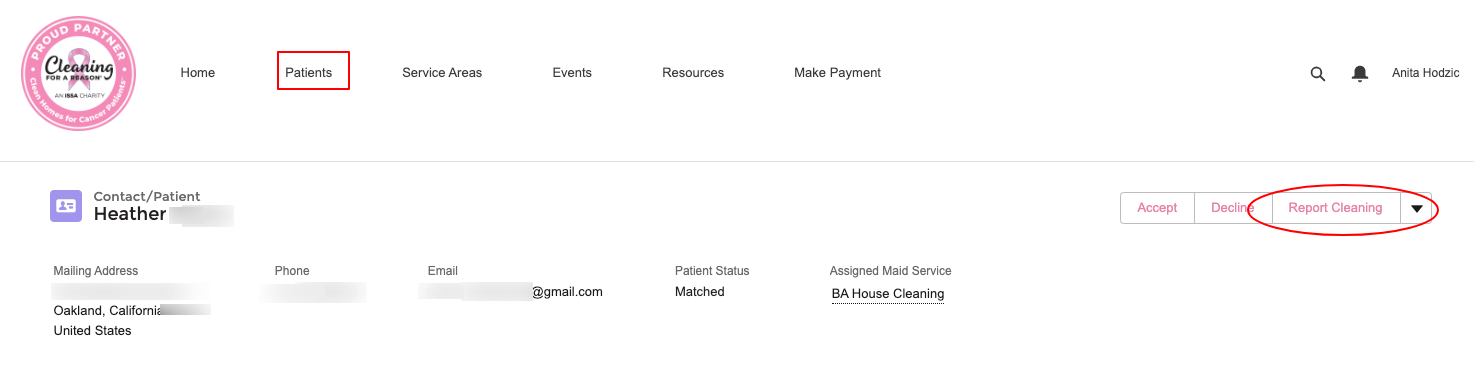
- Log in to the C4R website and record the scheduled cleaning.
- After the cleaning is completed, mark it as finished in C4R.
- Repeat the same process for the 2nd scheduled cleaning.
Step 5: Updating Cleaning Technicians’ Pay to $25/hour in MaidCentral
🚨 This step happens ONLY AFTER the job has been booked.
1. In Maid Central, Click “Company”

2. Click “Invoicing & Job Records”

3. Click “Choose a Date” (date that the cleaning is scheduled for

4. Select date

5. Press [[cmd or control]] + [[f]]
6. Locate the job and ensure/update that the pay is per HOUR at $25 per hour for that job
