
Manually Adding a Tip before invoice created
- Wants to add tip before you have invoice / charged their card for the scheduled job (same day)
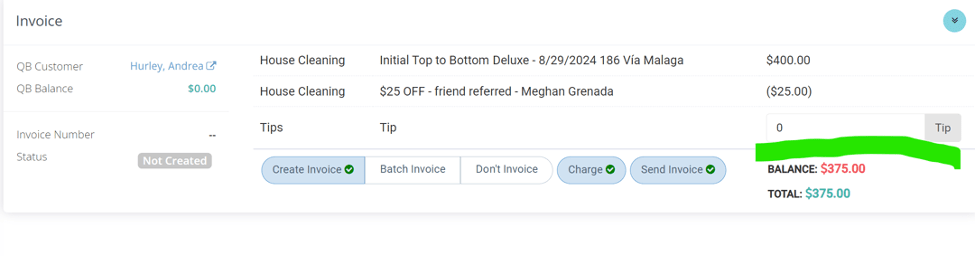
–> Go to MC invoicing – select date – scroll down to the client name – add the amount in the TIP box – then click create invoice + charge + send invoice (no need to message accounting – it will automatically apply to the assigned CT when done this way 😊)
2. Wants to add tip after the job has been invoiced/charged (either tells you via text / email / phone call or ticket created via customer portal which generates a ticket on MC dash) (same day / week of the scheduled job)
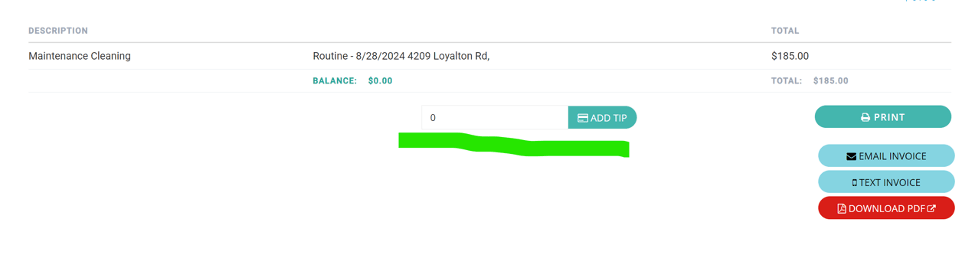
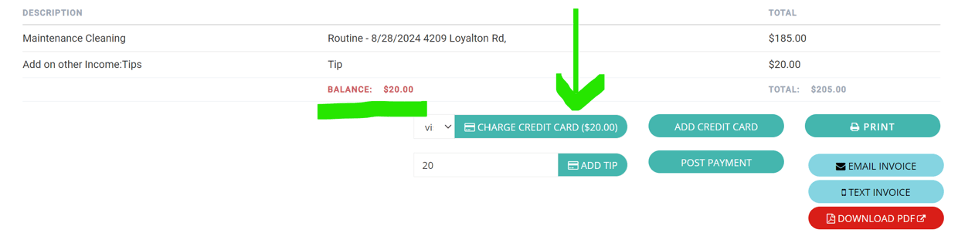
–> Go to clients MC account – click “view invoice” in bottom right corner – add amount to tip field – click charge card – slack accounting by tagging @abigail – date of cleaning + clients name + amount of tip + who it’s for + what you did because accounting will NOT know who the CT is 😊
(example: @abigail – 8 /28 John Smith – wants to add $30 TIP for Theresa after the job was charged – I have added this separately and charged it)
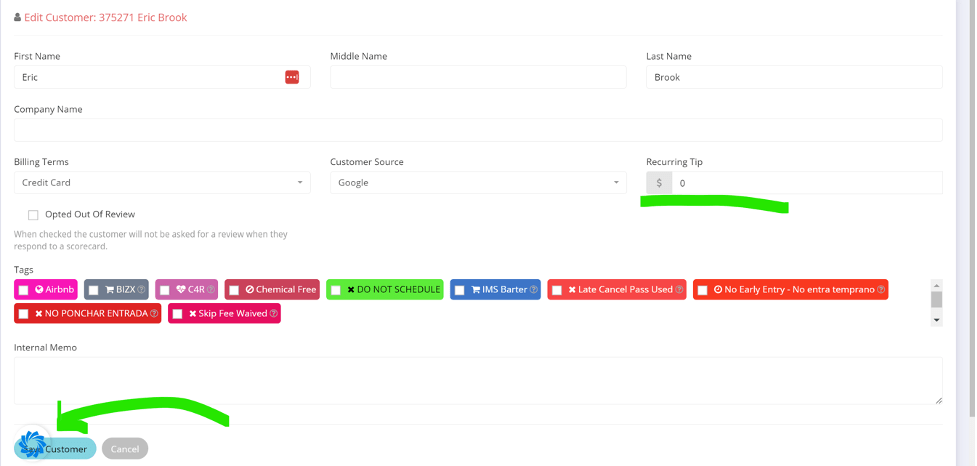
3.Wants to add add tip on a recurring basis (either tells you via text / email / phone call or ticket created via customer portal which generates a ticket on MC dash)
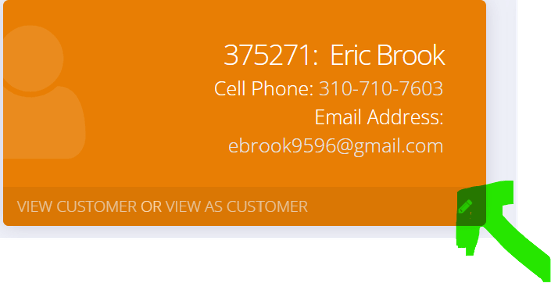
Go to MC account – click the pencil in the bottom right corner of the “orange” box showing clients name and number – add the amount they want to put for recurring tip on their maintenance set – click save at the bottom left and that’s it!!! MC invoicing will capture and auto charge every time you charge the job and accounting will know who the CT is to give the tip to 😊
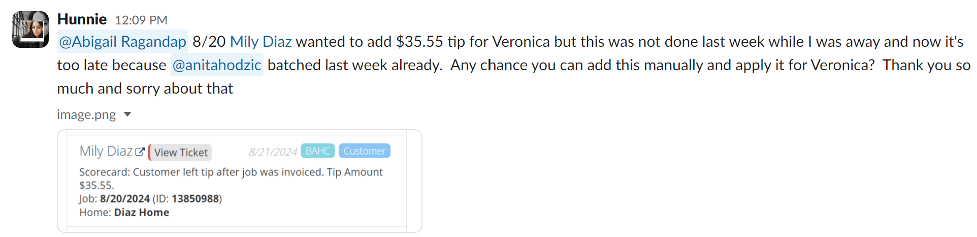
4.Client submitted a tip request via customer portal but you forgot to do it the same day / within same week before Friday
Copy and Paste the ticket from MC dash – slack accounting – tag @abigal – date of cleaning + clients name + attach screenshot of ticket from MC dash + name of CT and that you can no longer charge add this tip yourself + reason + request it to be done internally by accounting (example below)
This guide outlines the steps to add a tip for customers in MaidCentral (MC) based on different scenarios. Follow the instructions below according to the customer’s situation.
1. Adding a Tip Before Invoicing or Charging the Card for a Scheduled Job (Same Day)
If the customer wants to add a tip before you have invoiced or charged their card for the scheduled job:
- Go to MC Invoicing.
- Select the date of the scheduled job.
- Scroll down to the client’s name.
- Add the desired amount in the TIP box.
- Click Create Invoice + Charge + Send Invoice.
Note: There’s no need to message accounting. The tip will automatically apply to the assigned Cleaning Technician (CT) when done this way.
2. Adding a Tip After the Job Has Been Invoiced/Charged (Same Day/Week)
If the customer requests to add a tip after the job has been invoiced or charged (via text, email, phone call, or a ticket created via the customer portal):
- Go to the Client’s MC Account.
- Click View Invoice in the bottom right corner.
- Add the tip amount in the Tip field.
- Click Charge Card.
- Slack accounting by tagging @abigail with the following details:
- Date of cleaning
- Client’s name
- Amount of the tip
- Name of the Cleaning Technician (CT)
- Description of what you did.
Example: @abigail – 8/28 John Smith – wants to add a $30 TIP for The